CTA Tasks User Guide
Overview, User Roles and Permissions
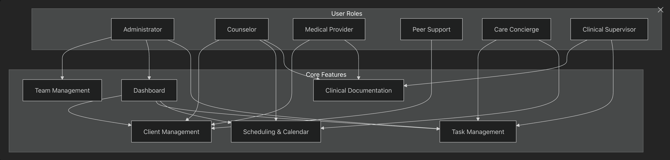
The Care Team Application is a web-based platform for healthcare professionals to manage prospects, clients, coordinate care teams, handle scheduling, and track tasks within the Anonymous Health Enterprise Class AI system for Behavioral Health.
CTA supports multiple care team roles, each with specific access levels. Each role has specific permissions and access to features based on their responsibilities:
Available Roles
- Admin: Full system access including team management, settings, and all client features
- Counselor: Client care, scheduling, clinical documentation, and treatment planning
- Medical: Medical provider access for prescribing and clinical oversight
- Peer Support: Client interaction and support services
- Care Concierge: Administrative support, task coordination, and scheduling assistance
- Clinical Supervisor: Oversight, approval workflows, and quality assurance
Additional specialized roles include Developer, Billing, On Call, Crisis Counselor, and AI Session Supervisor.
Task Management
Dashboard Tasks
Team members can view and manage tasks from the Dashboard. Administrators and Clinical Supervisors have access to team-wide task views.
Task Features
Tasks include:
- Title and detailed description
- Due dates and priority levels (Routine, Urgent, ASAP, STAT)
- Status tracking (Draft, Created, In Progress, Completed)
- Assignee management
- Client/referral associations
- Categorization and tags
Care Concierge Communication
Team members can send messages to the care concierge team for support with:
- Technical support requests
- Scheduling assistance
- Client escalations
- General troubleshooting
Messages are sent via email to the care concierge team with client context and details.
Treatment Planning
Care teams can manage intervention cadence and visit schedules for clients.
The treatment plan interface displays:
- Assigned counselors and their roles
- Visit frequency for each team member
- Treatment goals and objectives
- Problem statements and diagnoses
Creating Tasks
Manual Task Creation
Team members with Admin or Counselor roles can create tasks manually
- Navigate to the Tasks page
- Click "Create New Task" button
- Fill in task details:
- Title (required): Brief description of the task
- Description: Detailed information about what needs to be done
- Due Date & Time: When the task should be completed
- Priority: Select from Routine, Urgent, ASAP, or STAT
- Status: Initial status (typically Draft or Created)
- Tags: Categorization labels for organization
- Location: Specific location if using multi-site filtering
- Assign the task to team members or groups
- Link the task to related clients, prospects or referrals
- Save the task
AI-Generated Tasks
Tasks can be automatically created during AI conversations with clients. The AI assistant determines task details based on conversation context, including:
- Title and description derived from conversation
- Priority level based on urgency expressed by caller
- Category assignment for proper routing
- Automatic assignment to appropriate team groups.
Task Properties
Priority Levels
Tasks support four priority levels to indicate urgency:
- Routine: Standard priority for regular tasks
- Urgent: Requires prompt attention
- ASAP: As soon as possible, high priority
- STAT: Immediate attention required, highest priority
Status Workflow
Tasks progress through various statuses:
- Draft: Initial creation, not yet active
- Created: Active task ready for work
- In Progress: Currently being worked on
- Completed: Successfully finished
- Cancelled: No longer needed
- Rejected: Declined or not applicable
- Stopped: Halted before completion
- Archive: Completed and archived
- Failed: Requires clinical supervisor's review
Special Status Permissions
Certain statuses have restricted access:
- Failed Status: Only Clinical Supervisors can set or update tasks with failed status
Prospect/ Lead Priority
For tasks related to Prospects and Self-Referrals, an additional lead priority can be set:
- P1: Ready to sign up immediately
- P2: Comparing options
- P3: Contemplating treatment
- P4: Browsing information
Viewing and Searching Tasks
Tasks Page
The main Tasks page provides comprehensive task management:
Search and Filter Options:
- Text search across titles and descriptions
- Filter by status (Draft, Created, In Progress, etc.)
- Filter by priority level
- Filter by tags
- Filter by assignees (users or groups)
- Filter by related clients or referrals
- Filter by location (if enabled)
- Filter by date range (created after/before)
- Show only favorite tasks
- Sort by various fields
Display Features:
- Total count of matching tasks
- Paginated results
- Task ID numbers for reference
Dashboard View
Team members see their assigned tasks on the dashboard. This provides a quick overview of:
- Tasks assigned to you
- Tasks assigned to your groups
- Upcoming due dates
- Priority tasks requiring attention
Location-Based Filtering
Organizations with multiple locations can enable location-based filtering.
When enabled:
- Team members only see tasks for their assigned locations
- Tasks can be filtered by specific locations
- Location assignment helps organize multi-site operations
Managing Tasks
Updating Task Details
Team members can update existing tasks:
- Click on a Task to open the Edit modal
- Modify any field (Title, Description, Priority, Status, etc.)
- Update Assignees or related entities
- Change Due Date or Time
- Add or remove Tags
- Save changes
When a task is marked as completed or another closing status, the system automatically records the resolution timestamp.
Task Comments
Team members can add comments to tasks for collaboration:
- Open the Task
- Navigate to the Comments section
- Add your Comment
- Comments are timestamped and attributed to the author
Comments can be deleted by their authors.
File Attachments
Tasks support file attachments for documentation:
- Upload relevant documents
- Attach images or PDFs
- Reference materials for task completion
- Attachments are stored securely and linked to the task
Favorites
Team members can mark Tasks as Favorites for quick access:
Star important tasks
- Filter to show only your favorites
- Helps prioritize personal task lists
Task Assignment
Assigning to Users and Groups
Tasks can be assigned to:
- Individual Users: Specific team members (Therapists, Admins)
- User Groups: Teams organized by role or function
- Referral Sources: External referral partners (if enabled)
Category-Based Assignment
Tasks are automatically assigned to appropriate groups based on category:
- Care Concierge: Administrative tasks, scheduling, pharmacy questions
- Billing: Billing and payment inquiries
- Crisis: Emergency situations requiring immediate response
- Clinician: Clinical issues requiring provider attention
Task Relationships
Linking to Clients and Referrals
Tasks can be related to:
- Clients: Current patients in the system
- Referral Sources: External referral organizations
- Referral Contacts: Specific contacts at referral sources
- Encounters: Clinical encounters or sessions
- Encounter Addendums: Follow-up documentation
This linking enables:
- Viewing all tasks related to a specific client
- Tracking referral-related work
- Organizing tasks by clinical encounters
AI Conversation Transcripts
Tasks created from AI conversations include a link to the conversation transcript. Team members can:
- Open the Task
- Switch to the "AI Transcript" tab
- Review the Full Conversation that generated the Task
- Understand context and caller intent
Task Notifications and Activity
Activity Feed
Task creation and updates generate activity feed entries:
- Task creation events
- Status changes
- Priority updates
- Assignment changes
- Tag modifications
- Due date adjustments
The activity feed tracks who made changes and when, providing an audit trail.
Notifications
When tasks are created or assigned, the system can notify assignees through configured channels. This helps ensure timely task completion and team awareness.
Best Practices
For Task Creators
- Clear Titles: Use action-oriented titles that describe what needs to be done
- Detailed Descriptions: Provide sufficient context for assignees to complete the task
- Appropriate Priority: Set priority based on actual urgency to avoid priority inflation
- Proper Assignment: Assign to the right person or group based on task category
- Relevant Tags: Use consistent tags for easier filtering and organization
For Task Assignees
- Regular Review: Check your task list daily for new assignments
- Status Updates: Update task status as you progress through work
- Add Comments: Document progress, questions, or blockers in comments
- Complete Promptly: Address high-priority tasks first
- Mark Complete: Update status to completed when finished
For Administrators
- Monitor Overdue: Track tasks past their due dates
- Balance Workload: Ensure tasks are distributed fairly across team
- Review Failed Tasks: Clinical Supervisors should review failed tasks promptly
- Archive Regularly: Archive completed tasks to keep active lists manageable
- Tag Consistency: Establish and enforce consistent tagging conventions
Notes
The Task Management system integrates with the broader Care Team Application, supporting both manual workflows and automated task generation from AI conversations.
Tasks serve as the primary mechanism for coordinating work across care teams, ensuring accountability, and tracking completion of client-related and operational activities.
The system's flexible assignment, categorization, and filtering capabilities enable teams to organize work effectively across complex multi-site healthcare organizations.