Article Title
Selecting Your Camera, Microphone, and Speaker During a Telehealth Session
Expected Outcomes
After completing this article, you should be able to select your preferred camera, microphone, and speakers while in a telehealth video session.
Purpose/Short Description
This article provides step-by-step instructions for selecting a different camera, microphone, or speaker when you have multiple devices connected, ensuring a clear and successful telehealth visit.
Tags
Video Call, Audio Issues, Camera, Microphone, Speakers, Troubleshooting, Patient Support, Healthcare Providers, Chrome, Browser
Audience
Patients, Healthcare Providers, Admins
Body Content: Step-by-Step Instructions
Note: The ability to select your camera, microphone, and speakers is currently available only when you join your appointment using a web browser (Google Chrome is recommended). When using the Anonymous Health mobile app, the default devices configured on your phone or tablet will be used automatically.
How to Change Your Devices During a Video Session
-
Join your session. Open your appointment link in a web browser and enter the virtual waiting room.
-
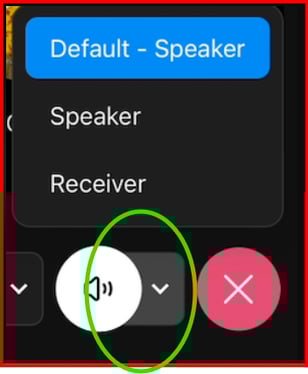
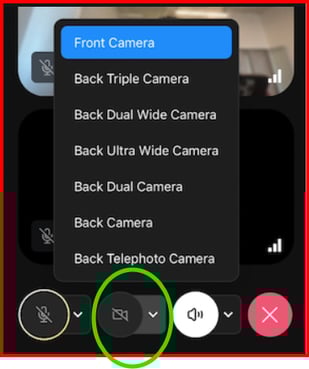
Locate the device selection arrows. At the bottom of the video session screen, you will see an arrow next to the microphone and camera icons.
-
Click the arrow next to the icon for the device you want to change (e.g., the microphone icon for audio, the camera icon for video).
-
Select your preferred device. A list of available devices (cameras, microphones, or speakers) will appear. Click on the device you want to use.
-
The selected device will be used immediately.
-
You can mute and unmute your selected microphone as needed during the call.
-
To switch back to a different device, simply repeat these steps.
-
Relevant Links