After completing this article, you should be able to:
-
Successfully enroll your macOS, iOS, Android, or Windows device into the Anonymous Health Hexnode Mobile Device Management system.
-
Authenticate your device using your corporate Google Workspace account.
-
Understand the security configurations and applications that will be automatically managed on your device.
This article guides employees through the process of enrolling their corporate or personal devices into Hexnode Mobile Device Management (MDM). Enrolling your device ensures you have secure access to company resources, Wi-Fi, and necessary applications while keeping sensitive data protected.
Tags
Hexnode, MDM, Device Enrollment, Google Workspace, Security, Remote Work, macOS, iOS, Android, Windows, IT Support, Internal Staff.
Audience
All Full-time and Contract Employees.
Step-by-Step Instructions
All device enrollments use Google Workspace authentication. You will be required to sign in with your corporate Google email and password during each of the processes below.
MacOS Enrollment
MacOS device enrollment process is has two parts (1-6) and (6-7) below:
First, is Authenticating with your Google Workspace account and downloading the MDM Profile for your MacOS Device.
Second step installing the profile in System Settings (step 6) as described below:
-
Open Enrollment Link: Click the enrollment link provided in your enrollment invitation email.
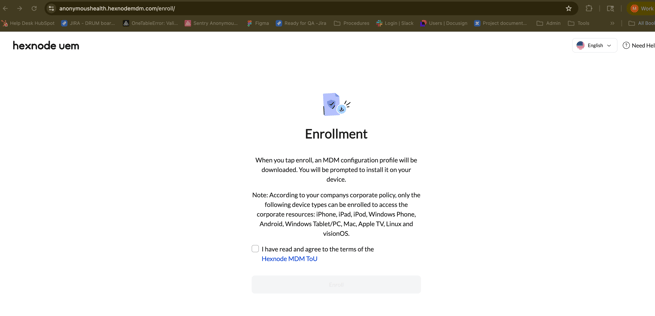
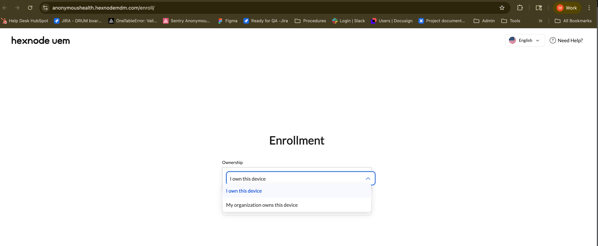
2. Select "My Organization Owns this Device" or "I own This Device"
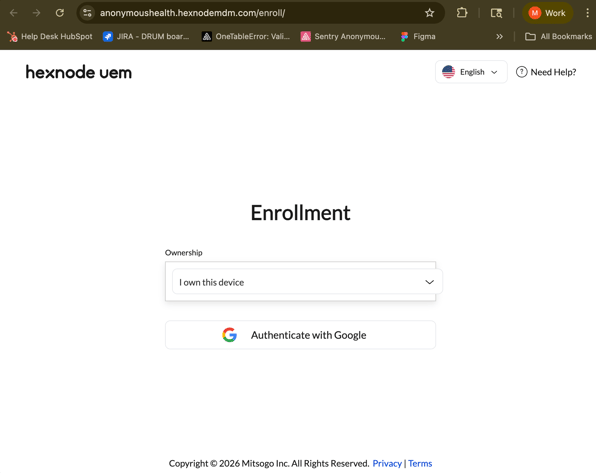
3. Sign in with Google: Enter your corporate Google Workspace credentials when prompted.
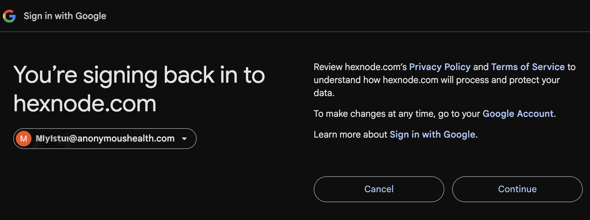
4. Download Profile: Download the .mobileconfig configuration file to your computer.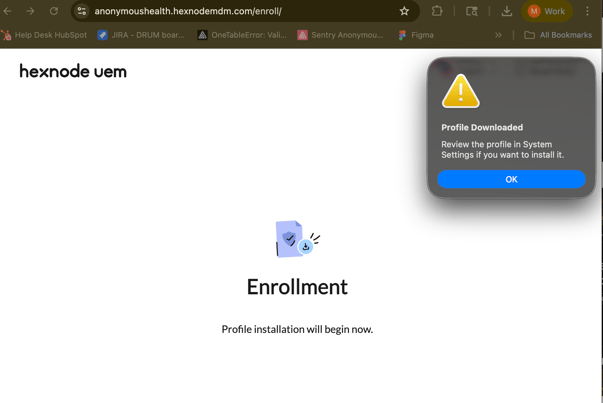
5. Install Profile: Select the downloaded profile to install it.
6. Open System Settings (or System Preferences), navigate to General -> Deice Management (or Profiles).
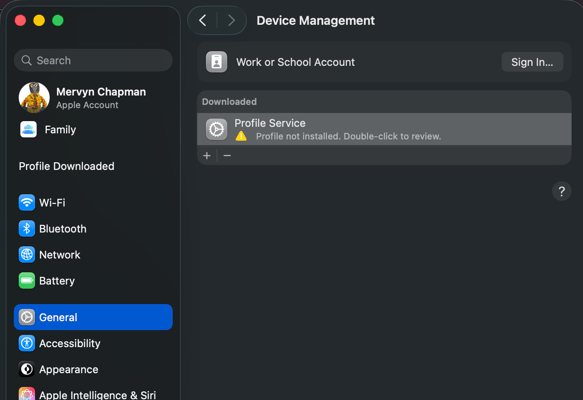
7. Complete Setup: Provide your device password/ passcode if prompted and wait for Hexnode to automatically apply security policies.
Done!
Windows Enrollment
-
Open Enrollment Link: Click the enrollment link found in your invitation email.
-
Sign in with Google: Authenticate using your corporate Google Workspace credentials.
-
Download Hexnode Agent: Download and run the Hexnode Agent installer on your PC.
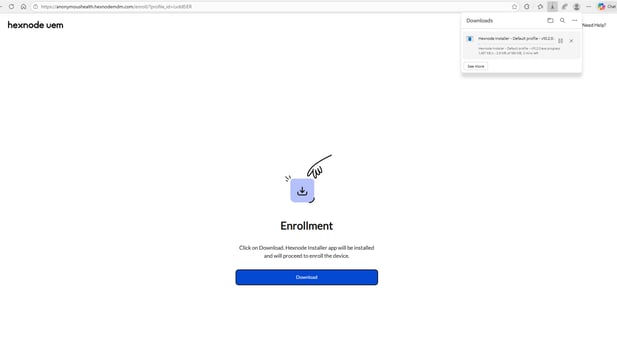
- Run the downloaded Hexnode Installer
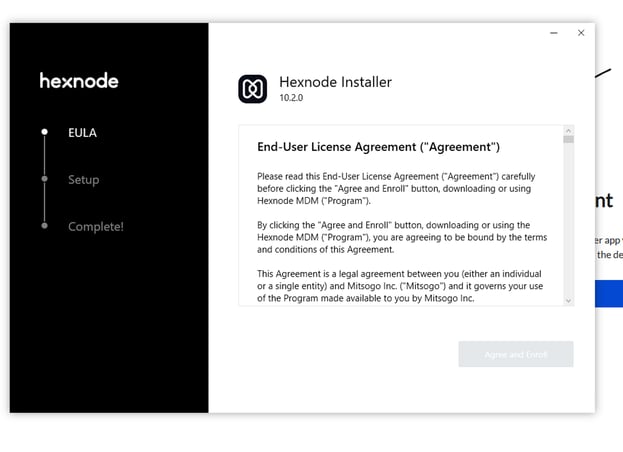
Scroll to the bottom to Agree and Install...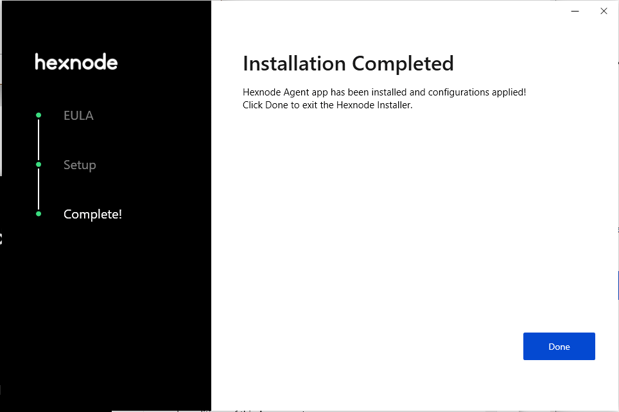
-
Complete Setup: Once the agent is installed, the device will automatically sync with corporate security settings.
iOS/iPadOS Enrollment
-
Download the App: Install the Hexnode MDM app from the Apple App Store.
[SCREENSHOT: Hexnode MDM app listing in the App Store]
-
Sign In: Open the app and authenticate using your corporate Google Workspace account.
-
Install Management Profile: Follow the on-screen prompts to download and install the management profile in your device settings.
[SCREENSHOT: iOS prompt asking to "Allow" the configuration profile download]
-
Finish Enrollment: Once the profile is verified, your device will sync with company policies.
Android Enrollment
-
Download the App: Install the Hexnode MDM app from the Google Play Store.
[SCREENSHOT: Hexnode MDM app listing in the Google Play Store]
-
Sign In: Open the app and sign in using your corporate Google Workspace account.
-
Grant Permissions: Follow the prompts to "Accept" device administrator privileges and allow the creation of a Work Profile.
[SCREENSHOT: Android permissions screen requesting Device Admin access]
-
Complete Enrollment: Your work apps and configurations will begin installing automatically within the Work Profile.
Important Privacy Information
-
Automatic Updates: After enrollment, corporate apps and security settings (like minimum passcode requirements) are managed automatically.
-
Privacy: Your personal data remains private. Hexnode only manages work-related apps and security configurations; it does not monitor your personal photos, messages, or files.
Troubleshooting
-
Connection: Ensure you have a stable internet connection throughout the process.
-
Restart: If the enrollment stalls or an app fails to download, restart your device and try again.
-
Support: If you encounter errors, please contact IT Support for further assistance.