Article Title
Login to the Client Team Application with your Anonymous Health Account
Expected Outcomes
After completing this article, you should be able to:
-
Successfully log in to your Anonymous Health account.
-
Identify and troubleshoot common login errors.
-
Gather necessary information to report a persistent login issue.
Purpose/Short Description
This article provides step-by-step instructions for resolving common login problems when accessing your Anonymous Health account, ensuring a smooth start to your telehealth session.
Tags
Anonymous Health, Login, Troubleshooting, Account Access, Provider Portal, CTA, Chrome, Email, Errors, Provider Support, Admin Support
Audience
Healthcare Providers, Admins
Body Content: Step-by-Step Instructions
1. Logging In with the Correct Chrome Profile
To ensure a smooth login experience, we recommend creating and using a dedicated Chrome profile for your Anonymous Health account.
For more information on Creating and Managing Chrome Profiles, please see the related articles in this Knowledge Base or at www.google.com
-
Visit the Anonymous Health Portal: Navigate to the login page at:
https://app.anonymous.health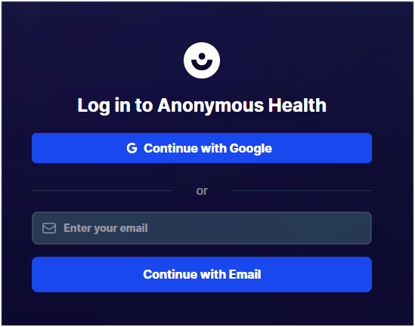
- Select "Continue with Google"
-
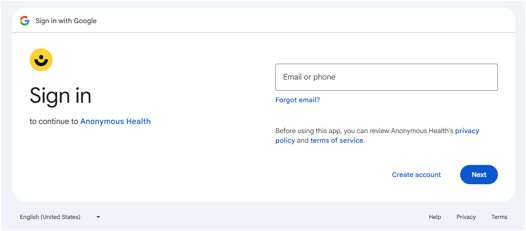
Enter Your Email: Enter the email address associated with your Anonymous Health account.
-
Enter Your Password and follow the prompts.
-
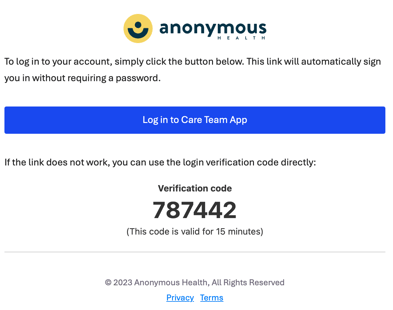
If Unable to complete the login via your Anonymous Health Google Account, please use the "Enter your email" / "Continue with Email" Option (above). Look for an email in your Anonymous Health mailbox and follow the Magic Link.
2. Troubleshooting Login Errors
If you are experiencing errors and cannot log in, please follow these steps to help diagnose and report the issue:
-
Open Developer Tools: With the login page open, press the
F12key on your keyboard to open the Chrome Developer Tools. -
Take a Screenshot: Take a screenshot of the Error and "Console" tab of the Developer Tools page if possible.
-
Report the Issue: Provide the screenshot and a detailed description of the error to the Support team for further assistance.
When logged in with Wrong Chrome Profile:
If your Chrome profile is not associated with your Anonymous Health account, you will see an Error similar to:
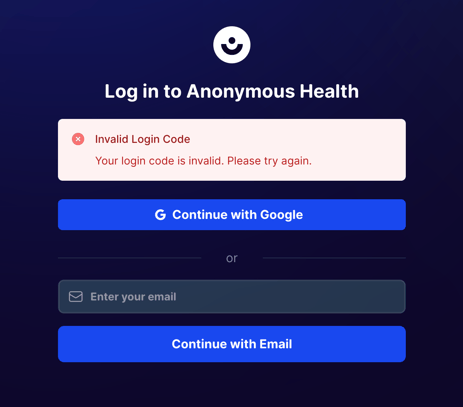
Enter your Anonymous Health email address and continue with Email
Shortly in your mailbox you will receive an email from:
Anonymous Health <no-reply@anonymous.health>
Clicking on this link should complete the login:
(example only, this code is expired and invalid):