Expected Outcomes:
After completing this article, you should be able to enable a client to select an AI Therapist Assistant and manage the AI within a live session.
Purpose/Short Description:
This article guides counselors on how to add an AI Companion to a live session, detailing the steps for both clients and providers.
Tags:
CTA, AI Hybrid, Counseling, Clinician, Provider, AI Companion, AI Therapist Assistant
Audience:
Counseling Team
1. Enabling AI Assistant Selection
Follow these steps to allow a new client to select an AI Companion:
-
Join the Appointment:
-
Join the virtual appointment as the provider.
-
-
Enable Assistant Selection:
-
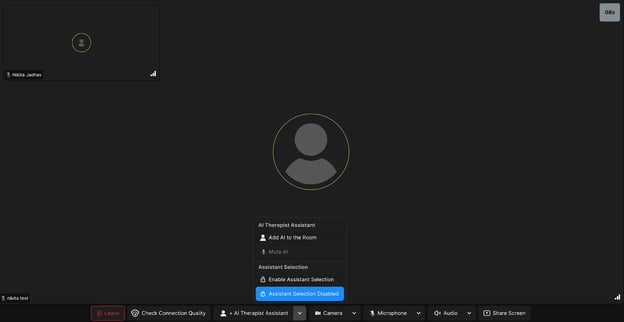
Find the "+AI Therapist Assistant" button at the bottom of the screen.
-
Click the arrow next to the button.
-
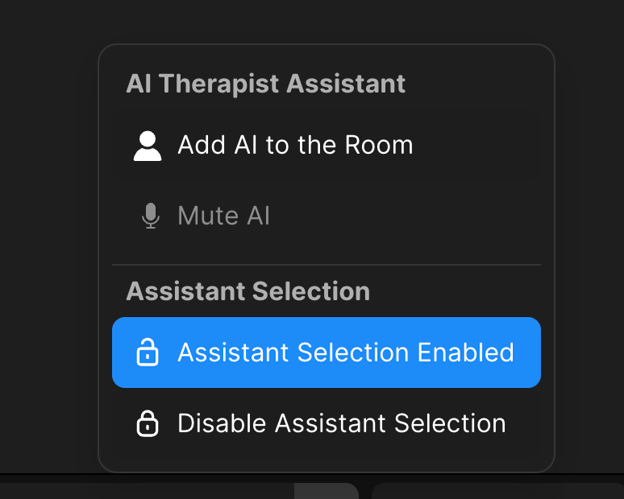
From the menu, select "Enable Assistant Selection."
-
2. Adding a Returning Client's AI Companion
If a client has previously chosen an AI Companion, you can quickly add them to the room:
-
Add AI to the Room:
-
Click the "+AI Therapist Assistant" button at the bottom of the screen.
-
The system will automatically add their last-used AI Companion to the session.
-
3. Client Experience: Selecting an AI Companion
Once you have enabled AI Assistant selection, instruct the client to:
-
Select the AI:
-
Click the participant icon in the top-right corner of their screen.
-
Choose "Select AI Therapy Assistant" from the options.

-
-
Choose an Assistant:
-
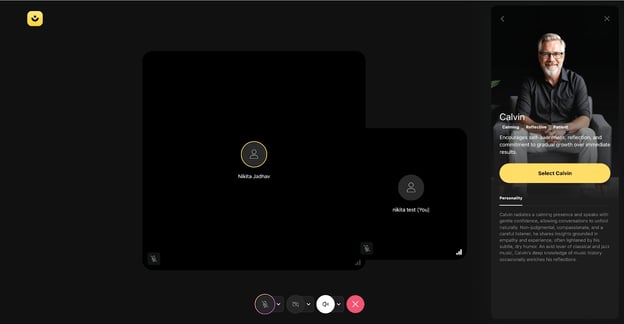
They can now choose from the list of available AI Therapist Assistants.
-
Clicking an AI's profile will show more details about its personality.

-
-
Connect with the AI:
-
After they make a selection, they will connect with the chosen AI Companion.

-
4. Managing the AI Companion (for Providers)
You have full control over the AI Companion during the session:
-
View the AI:
-
The AI Companion will now appear as a participant in your view of the meeting.

-
-
Mute or Remove the AI:
-
You can mute or remove the AI Companion from the room by clicking the "+AI Therapist Assistant" button at the bottom of the screen.

-