Expected Outcomes:
After completing this article, you should be able to cancel or delete a single instance of a recurring appointment or an entire recurring series.
Purpose/Short Description:
This article guides counseling team members on how to manage recurring appointments within the CTA's schedule, covering both canceling individual events and deleting a full series.
Tags:
CTA, Counseling, Clinician, Scheduling, Appointment, Recurring, Cancel, Delete
Audience:
Counseling Team
1. Deleting a One-Time Appointment
To delete a single, non-recurring appointment:
-
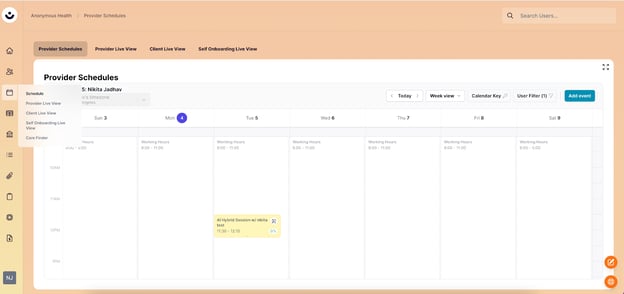
Navigate to the Schedule section in the CTA by clicking the calendar icon.
-
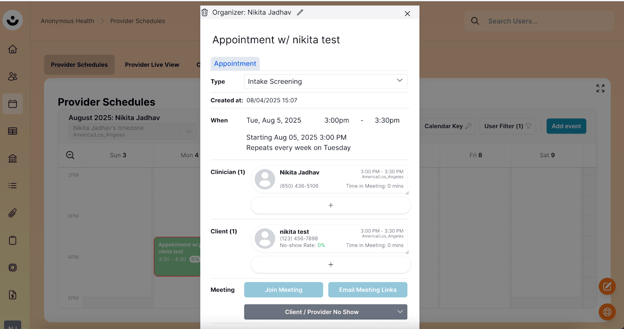
Click on the appointment you wish to delete.
-
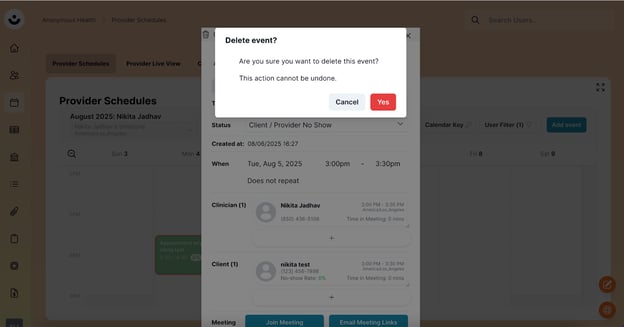
A confirmation pop-up will appear. Click "Yes" to confirm and delete the event.
2. Deleting a Recurring Appointment
To delete a recurring appointment series, you will be given two options:
-
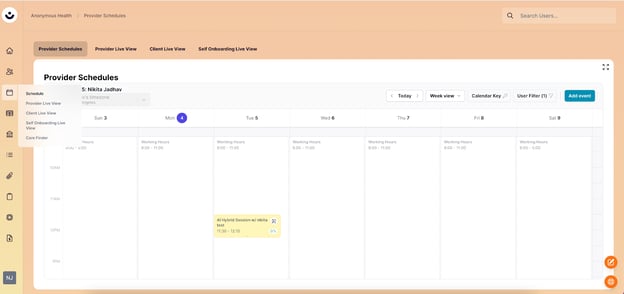
Navigate to the Schedule section in the CTA by clicking the calendar icon.
-
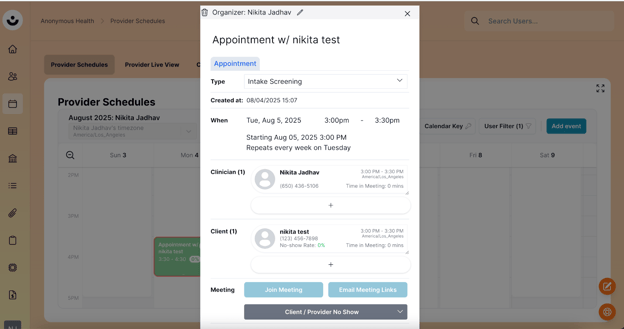
Click on the recurring appointment you want to delete.
-
Click the trash icon in the upper left corner of the appointment card.
-
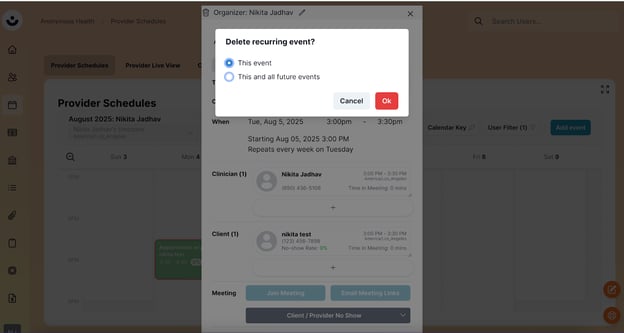
A pop-up will appear with two options:
-
"Delete this event": Choose this option to delete only the single instance of the appointment you have selected.
-
-
-
"This and all future events": Choose this option to delete the current appointment and all future appointments in the recurring series.
-