Expected Outcomes: After completing this article, you should be able to:
-
Access and complete an encounter note from an email link.
-
Manually create an encounter note for a client.
-
Sign and finalize an encounter note for billing and record-keeping.
Purpose/Short Description: This article provides healthcare providers with a step-by-step guide to accurately and efficiently complete encounter notes for client appointments, ensuring proper documentation and billing.
Tags: CTA, Counselor, Clinician, Provider Portal, Encounter Note, Documentation, Billing, ICD-10, CPT Codes, Medical Record
Audience: Healthcare Providers, Counselors, Clinicians
1. Completing an Encounter Note from an Email Link
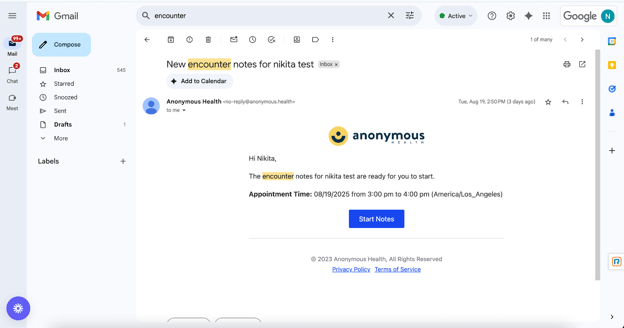
Ten minutes before a scheduled appointment, the system sends an email with a link to the encounter note.
-
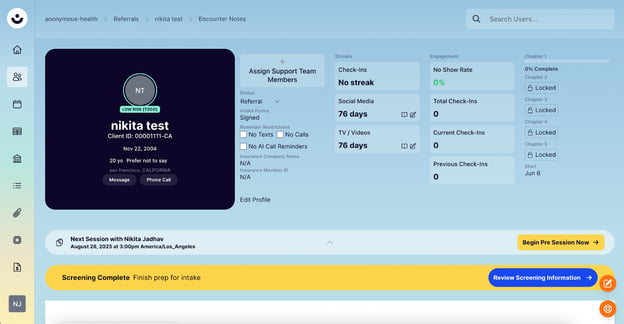
Open the email and click the blue "Start Notes" button. This will take you directly to the encounter note page.
-
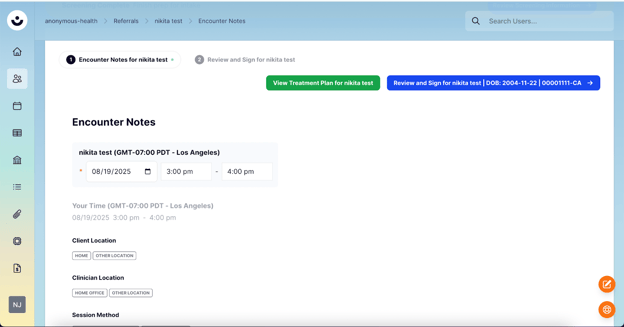
Scroll down to view the encounter form. Complete all required fields.
-
For questions that require a specific status, select "Within Normal Limits" or "Not Within Normal Limits." If you select "Not Within Normal Limits," a text box will appear for you to provide a brief explanation.
-
Navigate between the different pages of the encounter note. Before you submit, make sure you've completed all required fields to avoid a submission error.
-
On the "Review and Sign" page, select the appropriate ICD-10 and CPT codes for billing purposes.
-
Click the "Sign" button, then click "Finish and Sign." [SCREENSHOT: Review and Sign page with buttons highlighted]
-
If you are a clinician who requires a supervisor's signature, select the "Requires Supervisor Signature" option when prompted.

The encounter note is now finalized and saved to the client's record.
2. Creating an Encounter Note Manually
If you need to create an encounter note for a past appointment or for any other reason, you can do so from the client's profile.
-
Log in to the Provider Portal and search for the client's name.
-
Navigate to the "Encounters" tab on the client's profile.
-
Scroll to the far right of the page and click the "Add Encounter Note" button. [SCREENSHOT: Client profile page with "Encounters" tab and "Add Encounter Note" button highlighted]
-
A new encounter note will appear. You will need to manually enter the appointment date and time.
-
Complete the rest of the encounter form, following the instructions above.