Expected Outcomes:
- After completing this article, you should be able to successfully schedule a Counselor Appointment within CTA
Purpose/Short Description:
- This article will guide you through the process of managing multiple workflows for AI Hybrid Appointments/ Sessions within the Client Team Application.
Tags:
- AI Hybrid, Workflow, Series, CTA, Counseling,
Audience:
- Counseling Team
Body Content: Step-by-Step Instructions
- Note:
- Previously Scheduled Sessions:
- Existing Appointments can be updated with additional Workflows. To Add additional Workflows, Open the Session's Card and click next to the existing workflow(s):
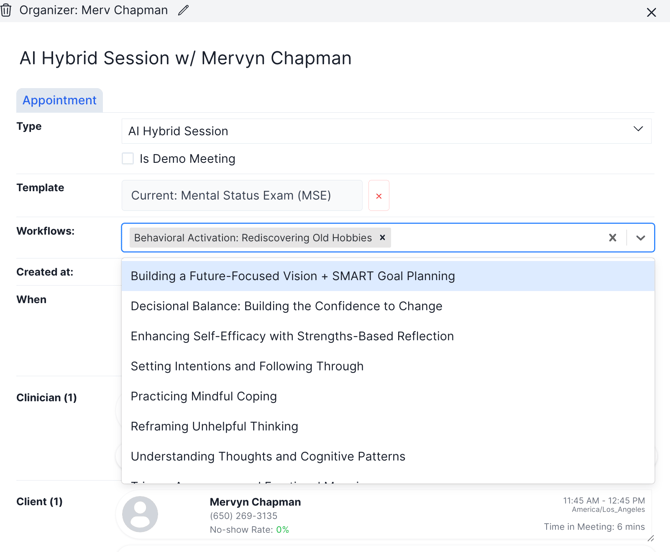
- New Sessions :
- Create New AI Hybrid Sessions are created normally and will support multiple Workflows.
- Previously Scheduled Sessions:
- Managing Multiple Workflows in an Active Session: While in an active Session,
- As a Clinician on an Active AI Hybrid Session, Select the Book/ Library Icon at the bottom right of the Session Window:
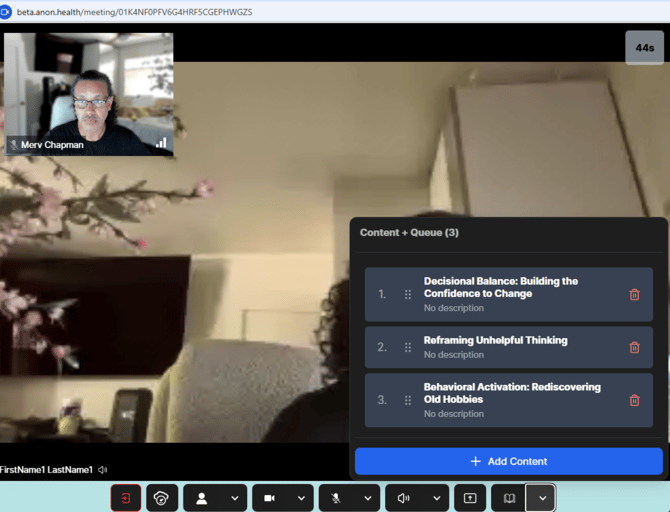
- The order of the workflows can be changed by dragging a selected workflow to the desired position
- Workflows can be deleted by selecting the re trashcan icon on the right of the workflow (see above)
- To add additional workflows, select the + Add Content button and select from the available library:
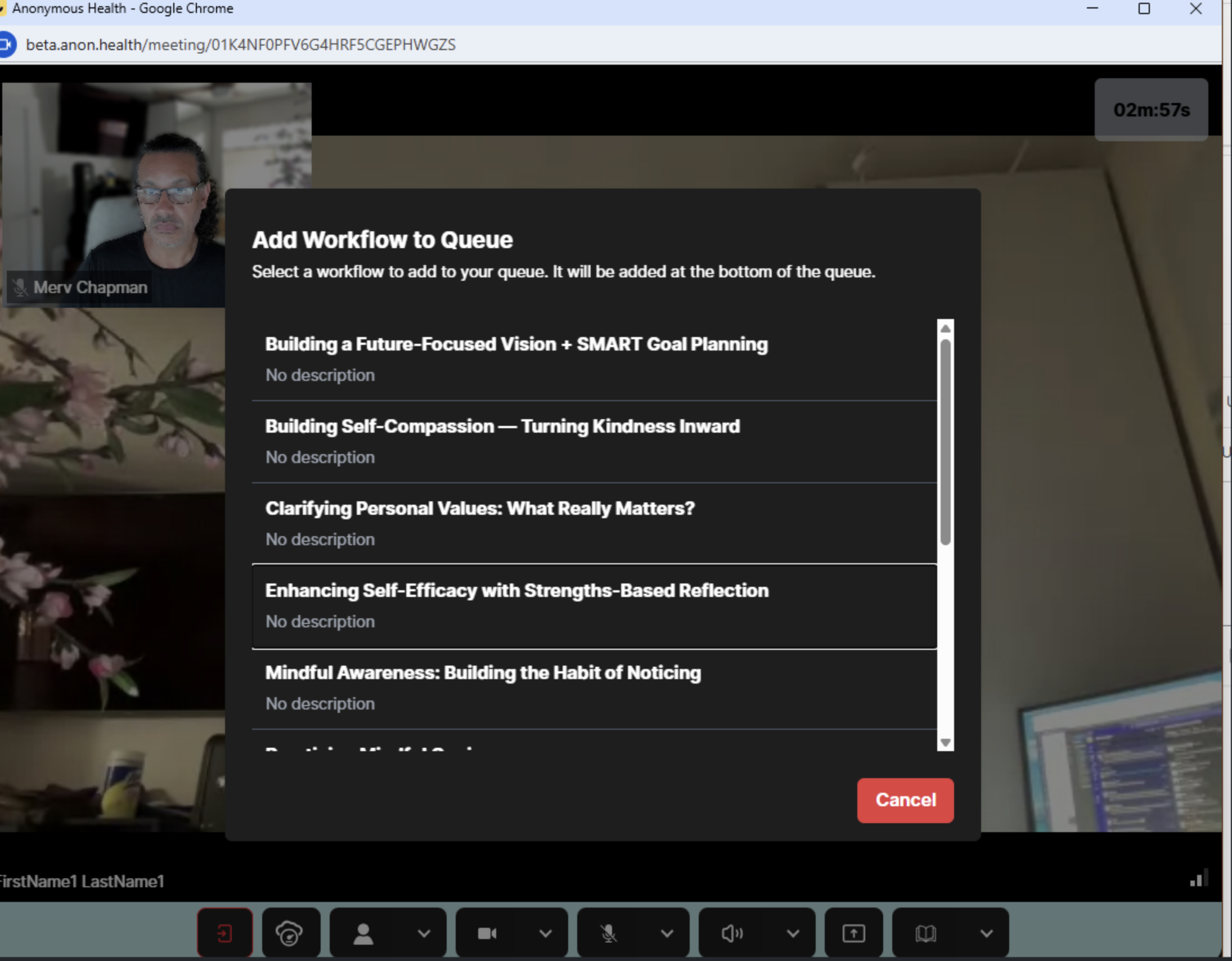
- To skip to the next Workflow:
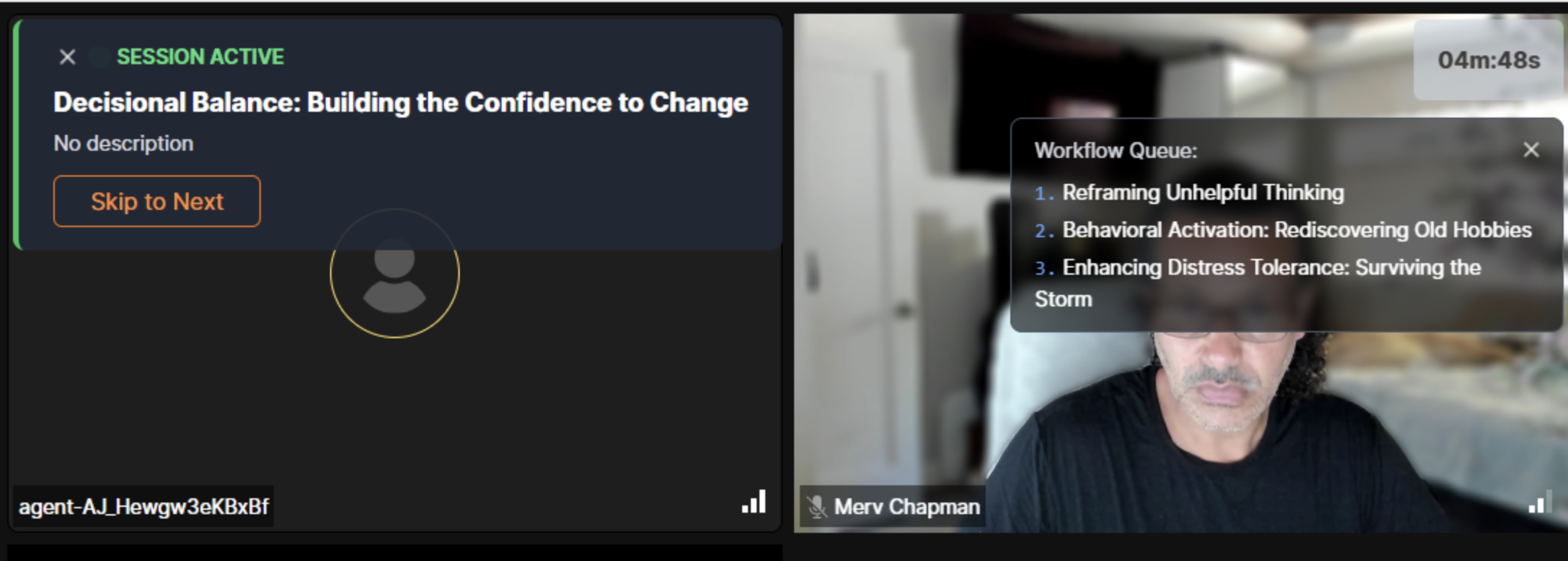
- You will be prompted to Confirm that you are ready to proceed to the next workflow:
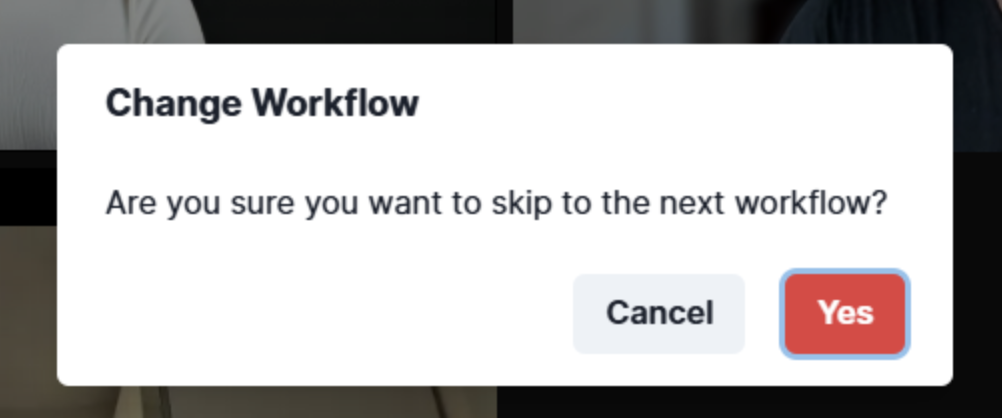
- AI Therapist Assistant will let the Client know that Therapist has updated the session and will ask if Client is ready to proceed.
- As a Clinician on an Active AI Hybrid Session, Select the Book/ Library Icon at the bottom right of the Session Window: