How to Schedule and Cancel/Remove a Client Appointment
Expected Outcomes:
After completing this article, you should be able to:
-
Successfully schedule a client appointment.
-
Understand how to cancel an appointment and update its status.
-
Know how to permanently remove an appointment from your calendar.
Purpose/Short Description:
This article guides counselors and clinicians through the process of creating appointments via the Schedule tab in the CTA, and explains how to cancel, and permanently remove client appointments.
Tags:
CTA, Counselor, Clinician, Scheduling, Schedule, Appointment, Add Event, Provider Portal
Audience:
Counseling Team, Clinicians
1. Scheduling an Appointment
Follow these steps to create a new client appointment:
-
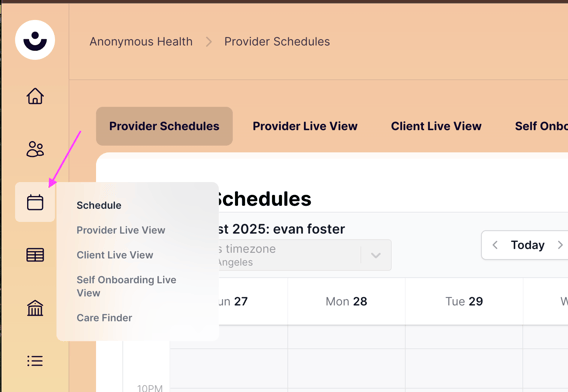
Navigate to the Schedule Tab:
-
In the CTA, click on the Schedule tab on the left side of your screen.
-
-
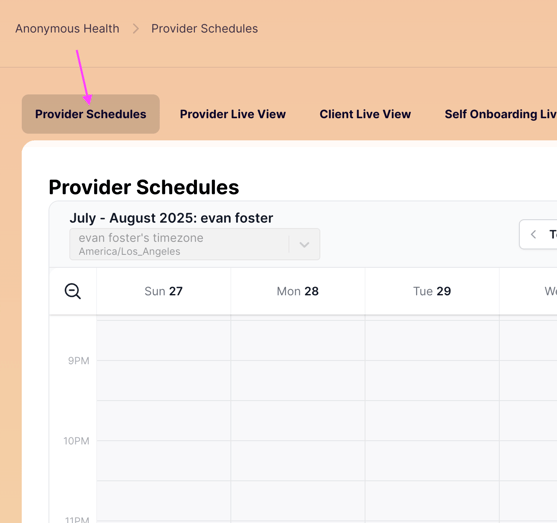
Go to Provider Schedules:
-
Click on the "Provider Schedules" tab at the top of the screen.
-
-
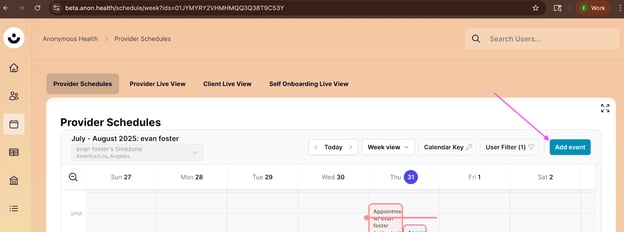
Add a New Event:
-
Navigate to the top-right of this screen and click the blue "Add Event" button.
-
-
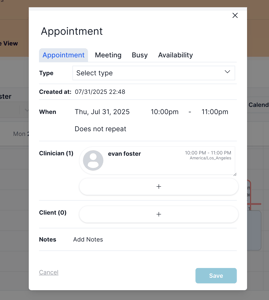
Create the Appointment:
-
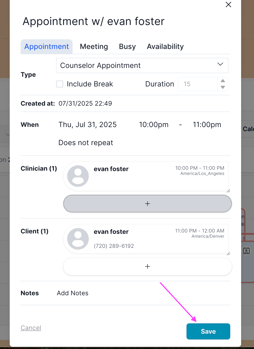
An event pop-up screen will appear.
-
-
Set Details and Client:
-
Create an appointment type and optionally change other properties (e.g., "Meeting," "Busy," "Availability").
-
Select your client using the "Client" dropdown.
-
-
Save and Send:
-
Click the "Save" button at the bottom-right of the screen.
-
-
Locate the Appointment:
-
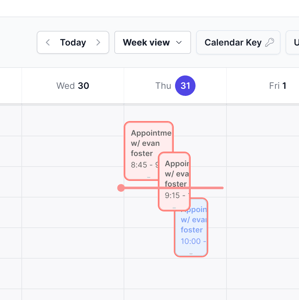
The appointment will now appear as a square box on your calendar under the "Provider Schedules" tab.
-
You can click on this box to access more information.
-
2. Canceling an Appointment
Canceling an appointment updates its status to "Canceled" but keeps it on your calendar.
-
Open the Appointment Card:
-
Access the Schedule tab and click on the appointment block you want to cancel.
-
-
Change the Status:
-
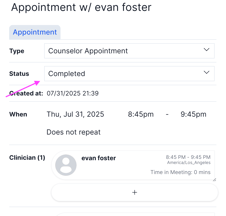
Click the "Status" dropdown within the appointment card.
-
-
Choose a Cancellation Reason:
-
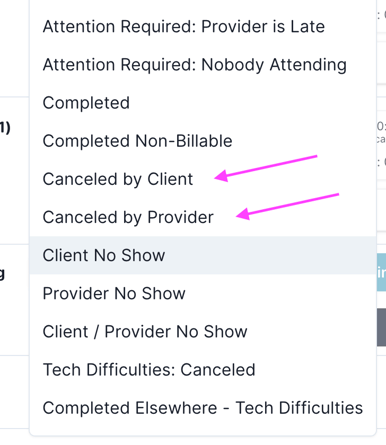
From the dropdown, select either "Canceled by Client" or "Canceled by Provider."
-
-
Save the Changes:
-
Click the blue "Save" button at the bottom-right of the screen.
-
3. Removing an Appointment
Removing an appointment permanently deletes it from your calendar.
-
Open the Appointment Card:
-
Locate the appointment on your calendar (as described in the previous section) and click on it.
-
-
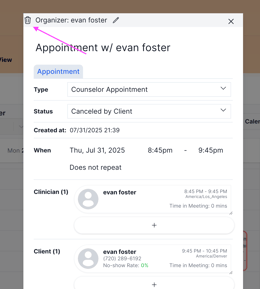
Click the Trash Icon:
-
Click the trash can icon at the top-left of the pop-up screen.
-
-
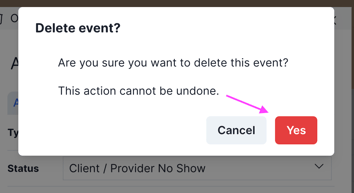
Confirm Deletion:
-
A confirmation prompt will appear. Click the red "Yes" button to successfully delete the appointment.
-