How to Send Reminder Calls and Texts to Clients
Expected Outcomes:
After completing this article, you should be able to send reminder calls or texts to a client for an upcoming appointment.
Purpose/Short Description:
This article guides counseling team members on how to use the CTA Dashboard to send appointment reminders to clients via their preferred communication method.
Tags:
CTA, Counseling, Clinician, Provider Portal, Reminders, SMS, Call
Audience:
Counseling Team
1. Finding Clients on the Dashboard
-
Navigate to the Dashboard:
-
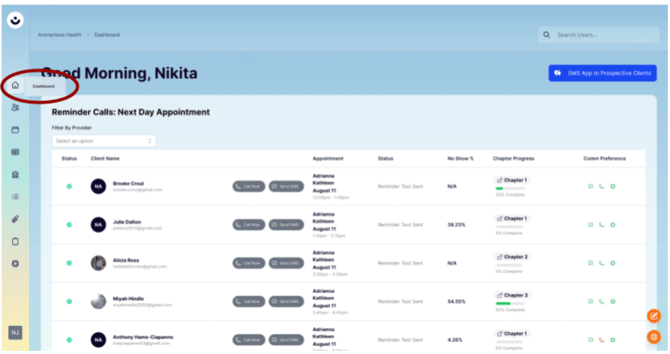
In the CTA, hover over the house icon in the left-hand navigation menu and select Dashboard.
-
-
Filter by Provider:
-
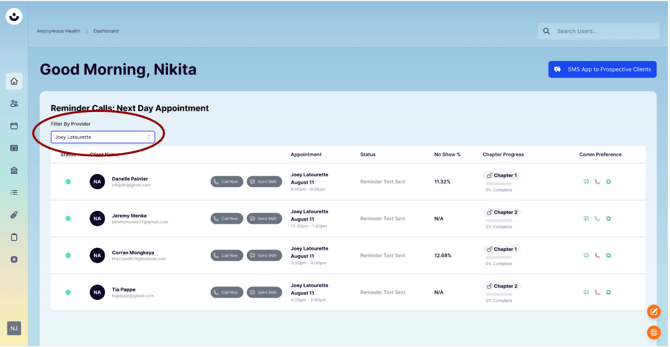
Use the filters to select a specific provider to see all of their clients.
-
-
Check Communication Preferences:
-
Review the intended client's communication preferences to choose the most suitable method for sending a reminder.

-
2. Sending a Reminder Call
-
Click "Call Now":
-
Click the "Call Now" button next to the client's name.

-
-
Log the Call:
-
The system will connect you via RingCentral.
-
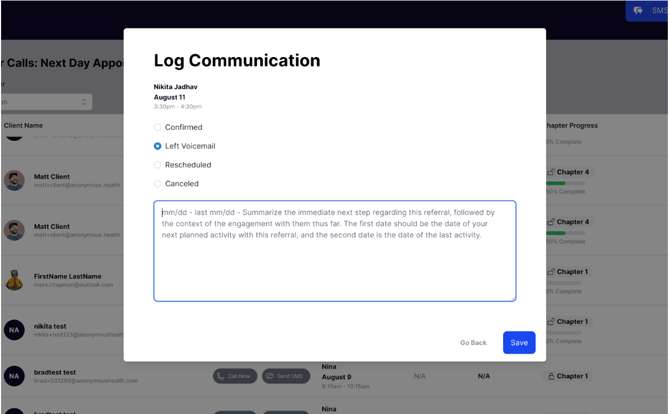
After the call, a pop-up will appear where you can log the communication.
-
3. Sending a Reminder Text
-
Click "Send SMS":
-
Click the "Send SMS" button next to the client's name.
-
-
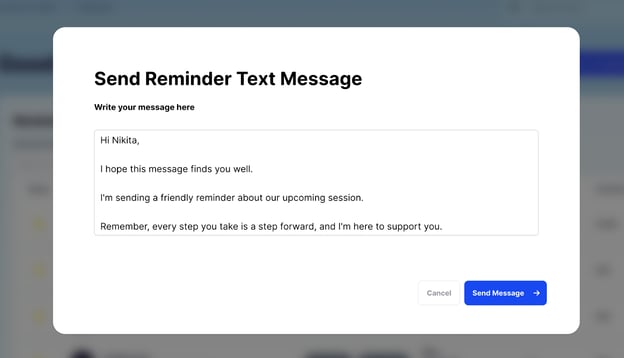
Edit and Send the Message:
-
A pop-up will appear, allowing you to edit the message you will send to the client.
-
Click "Send Message" to send the reminder text.
-
4. What the Client Sees
-
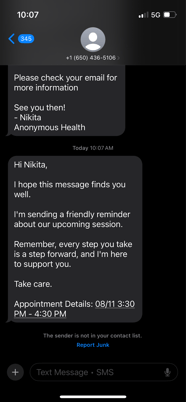
The client will receive the reminder call or text based on the method you selected.