Expected Outcomes:
After completing this article, you should be able to set your own open availability and view when other providers are available.
Purpose/Short Description:
This article guides counselors and clinicians on how to manage their open availability, which is used for scheduling appointments. It also explains how to view the schedules of other providers.
Tags:
CTA, Counseling, Clinician, Scheduling, Availability, Provider Portal, Team
Audience:
Counseling Team
1. Setting or Changing Your Availability
Follow these steps to set or change your open availability:
-
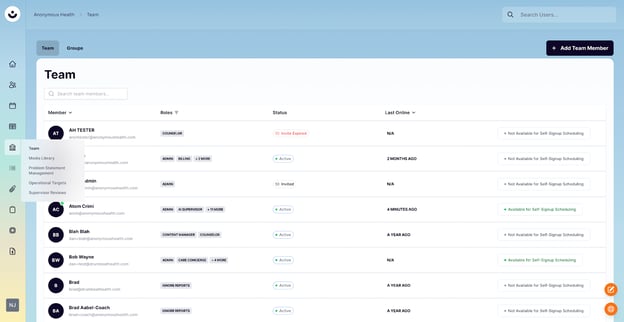
Navigate to the Team Section:
-
In the CTA, click the Parthenon icon on the left-hand navigation menu to go to the Team section.
-
-
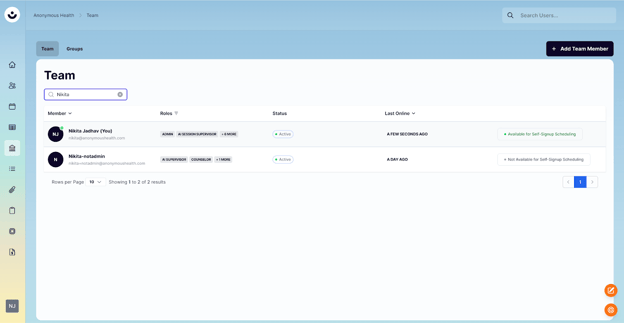
Search for Your Profile:
-
Use the search bar to find your name.
-
-
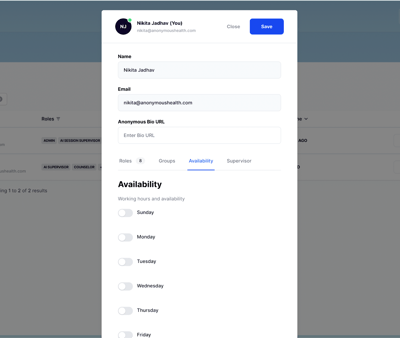
Go to the Availability Tab:
-
Click on your profile icon to open your profile page.
-
Navigate to and click on the "Availability" tab.
-
-
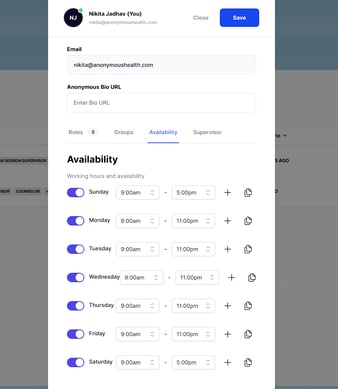
Set Your Availability:
-
Toggle the days you are available (e.g., Monday, Tuesday).
-
For each available day, select the time windows during which you can take appointments.
-
Use the plus button to add more time windows for a given day.
-
2. Viewing Other Providers' Availability
Follow these steps to see when other providers are available for scheduling:
-
Navigate to the Schedule Tab:
-
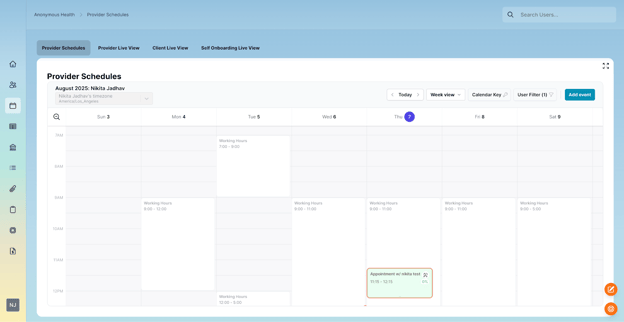
In the CTA, click the calendar icon on the left side of your screen.
-
-
Go to Provider Live View:
-
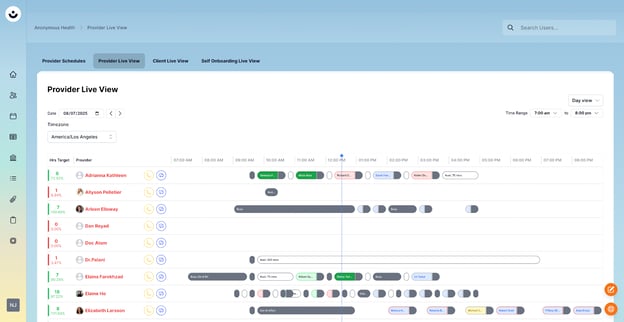
Click on the "Provider Live View" tab at the top of the calendar.
-
-
Review the Schedule:
-
On this screen, you can see when other providers are available, when they have appointments, and when they are marked as "Busy."
-