Expected Outcomes:
After completing this article, you should be able to use the Care Finder to find provider availability, select an appointment type, and book a new appointment with a client.
Purpose/Short Description:
This article guides counseling team members on how to use the Care Finder to efficiently locate provider availability and schedule client appointments, streamlining the booking process.
Tags:
CTA, Counseling, Clinician, Scheduling, Care Finder, Provider Portal
Audience:
Counseling Team
1. Accessing the Care Finder
-
Navigate to Care Finder:
-
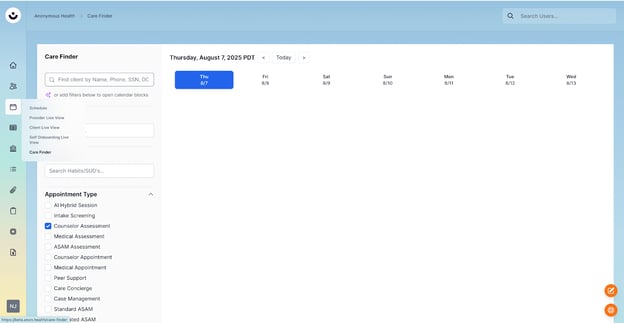
In the CTA, hover over the Schedule (calendar) icon in the left-hand navigation menu.
-
Select "Care Finder" from the menu that appears.
-
2. Finding a Provider and Their Availability
-
Search for a Client:
-
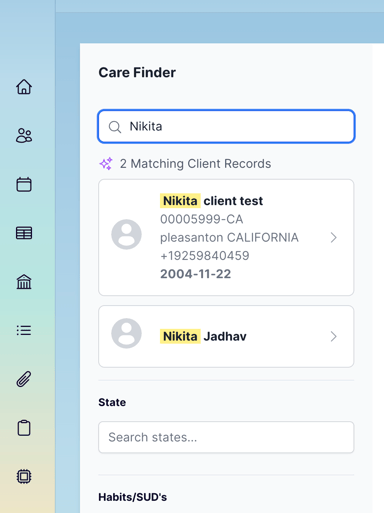
Use the search bar to find your client by name, phone, SSN, or date of birth.
-
-
View Client Information:
-
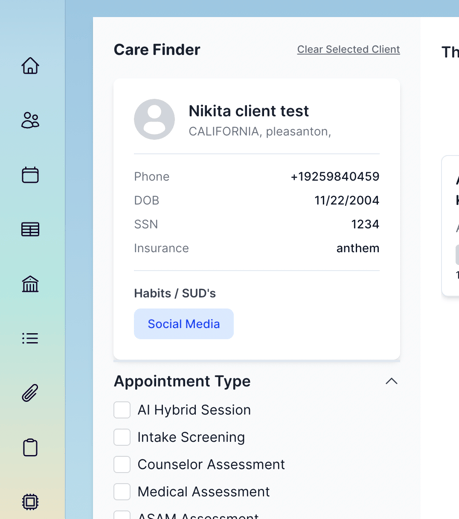
Click on the client's name to view their details, including habits and insurance information.
-
-
Filter by Availability:
-
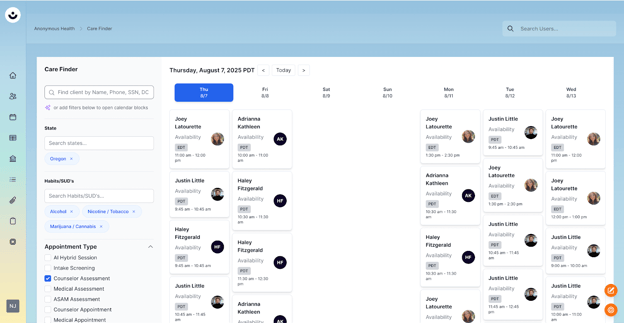
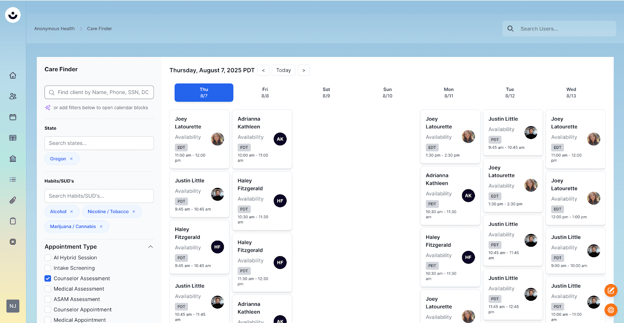
Use the filters on the screen to narrow down providers by state and/or habits.
-
Select an appointment type to find providers who are available for that specific type of meeting.
-
3. Scheduling the Appointment
-
Select a Time Slot:
-
The Care Finder will display available time slots for providers based on your filters.
-
Click on a provider's available time slot to begin scheduling.
-
-
Confirm and Save:
-
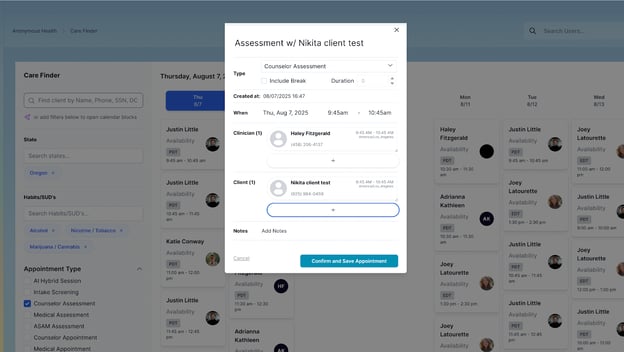
Add the client to the appointment card.
-
Click "Confirm and Save Appointment" to schedule the meeting.
-