Expected Outcomes:
After completing this article, you should be able to navigate to and use the Client Live View to see client schedules and appointment details.
Purpose/Short Description:
This article guides counseling team members on how to use the Client Live View in the CTA to see client schedules and filter by key criteria.
Tags:
CTA, Counseling, Clinician, Scheduling, Client, Provider Portal, Live View
Audience:
Counseling Team
1. Accessing the Client Live View
-
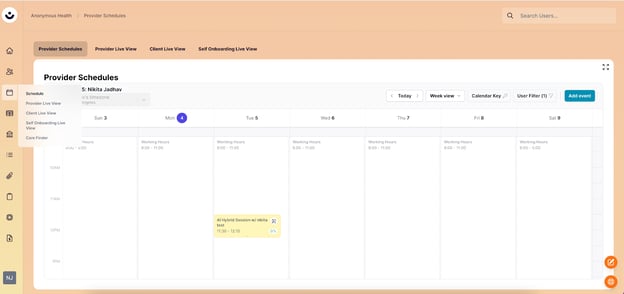
Navigate to the Schedule Tab:
-
In the CTA, click the calendar icon in the left-hand navigation menu.
-
-
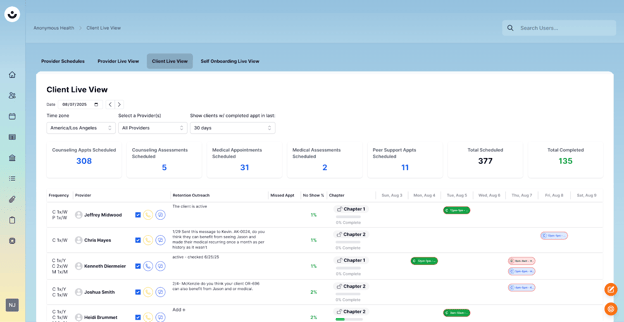
Go to Client Live View:
-
Click on the "Client Live View" tab at the top of the schedule.
-
2. Filtering and Viewing Client Schedules
-
View Client Schedules:
-
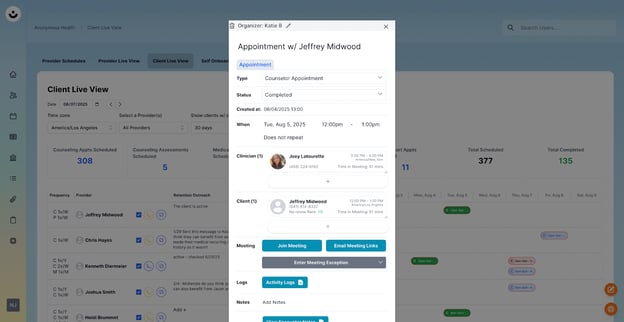
The schedules for your clients will be displayed on the right-hand side of the screen.
-
You can click on individual appointments to see more details.
-
-
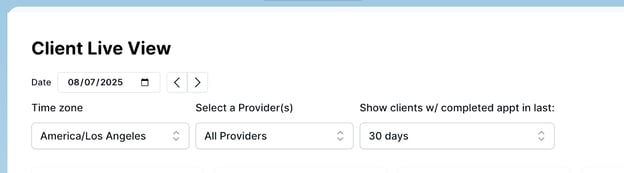
Filter the View:
-
You can refine the client schedules displayed by using the filters for Providers, Time Zone, and Last completed Appointment.
-
Relevant Links
-
Understanding Appointment Types: This article explains the color coding of different appointment types. [Link:
http://23611777.hs-sites.com/migration/knowledge/understanding-appointment-types-in-cta?hs_preview=aKxPBOyl-193684531762]