Quick Start Guide: Download, Log In, and Start Using Your Mobile App
Expected Outcomes: After completing this article, you should be able to:
- Successfully download the Anonymous Health Mobile App on your smartphone.
- Securely log in to your existing account using a temporary code, or start a new journey without an email.
- Access your Home Screen to view appointments and use all application features, including your AI Companion.
Purpose/Short Description: This guide provides clear, step-by-step instructions for new users to quickly download and log in to the Mobile App, ensuring you gain immediate, secure access to your care, appointments, and recovery tools.
Tags: Mobile App, Patient Application, Client Application, App Setup, Quick Start, Sign In, Login, Account, New User, Two Factor Authentication, App Permissions, Invite Link
Audience: Patients, Clients, Mobile App Users, New Users, All Users
Body Content: Step-by-Step Instructions
Follow these steps to download the Mobile App, sign in, and complete the basic setup.
Part 1: Download the Mobile App (with or without an Invite Link)
- Find the App Store: If you were sent an “Invite Link,” click on the link to be directed to the correct App/Play Store. The link will take you to the Anonymous Health app.
- If you were not sent an “Invite Link,” go to your phone's application store:
- iPhone Users: Open the Apple App Store.
- Android Users: Open the Google Play Store.
- Search and Download: Search for Anonymous Health and tap Download.
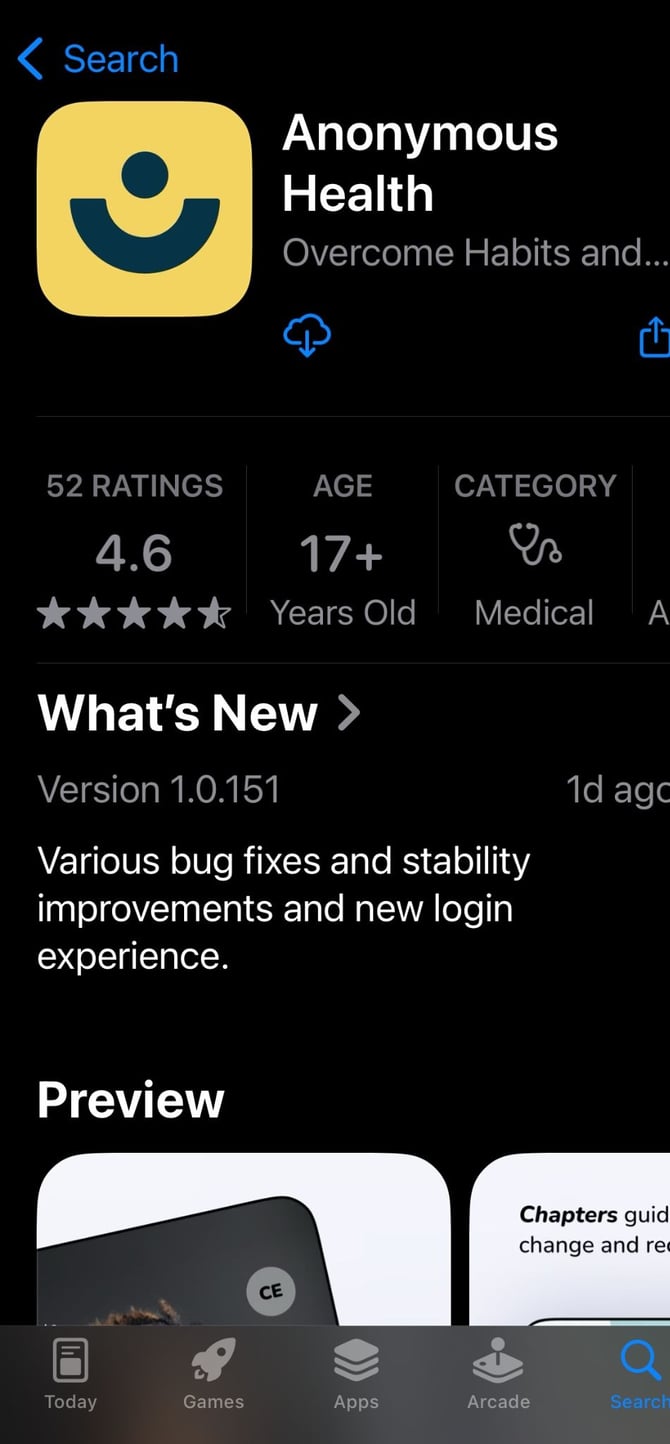
- Approve Permissions: As the application downloads, you may see prompts to allow permissions. To use all features, select Allow when prompted for access to your:
- Location (while using the app).
- Microphone.
Part 2: Secure Sign In (If You Have an Account)
If you have an existing account linked to an email, use these steps.
- Open the App: Tap the Mobile App icon on your phone screen to open it.
- Start Sign In: Tap "Sign In." If you are unsure if you have an account, please check with your care team. (If you don't have an email-linked account, skip to Part 3.)
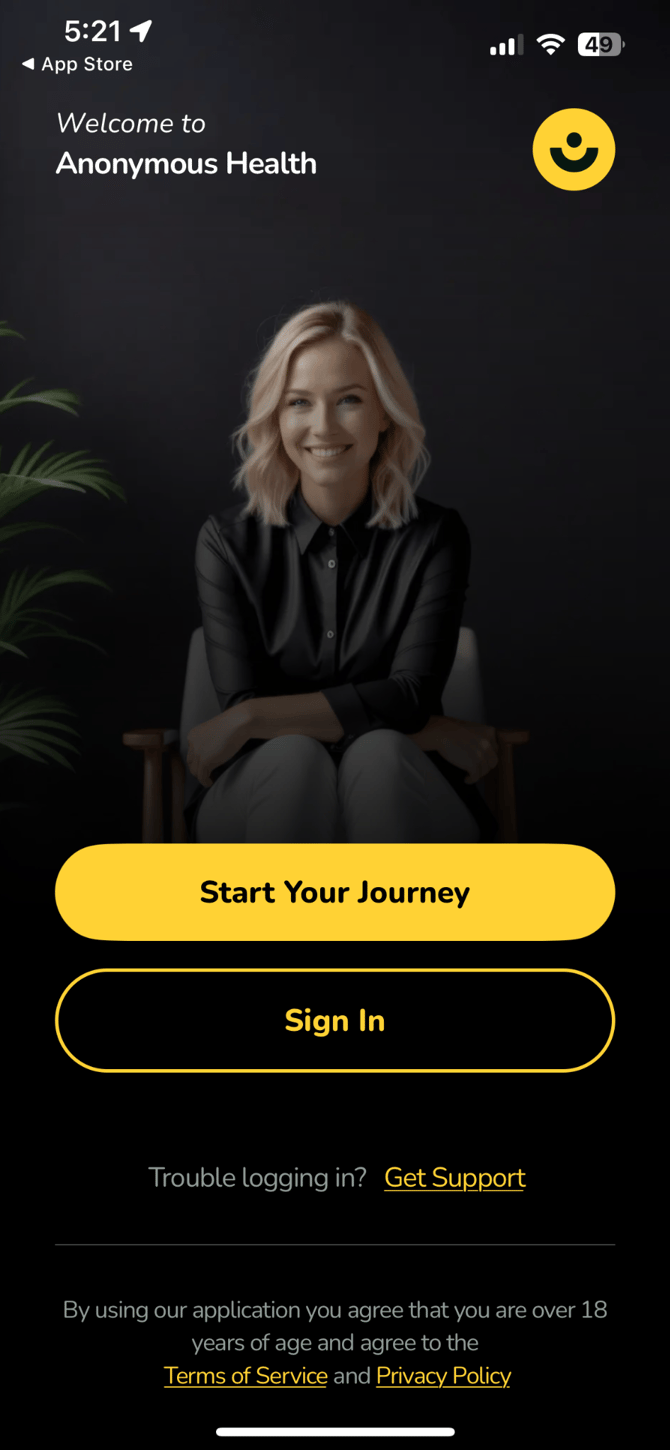
- Enter Email: Enter the email address associated with your existing account.
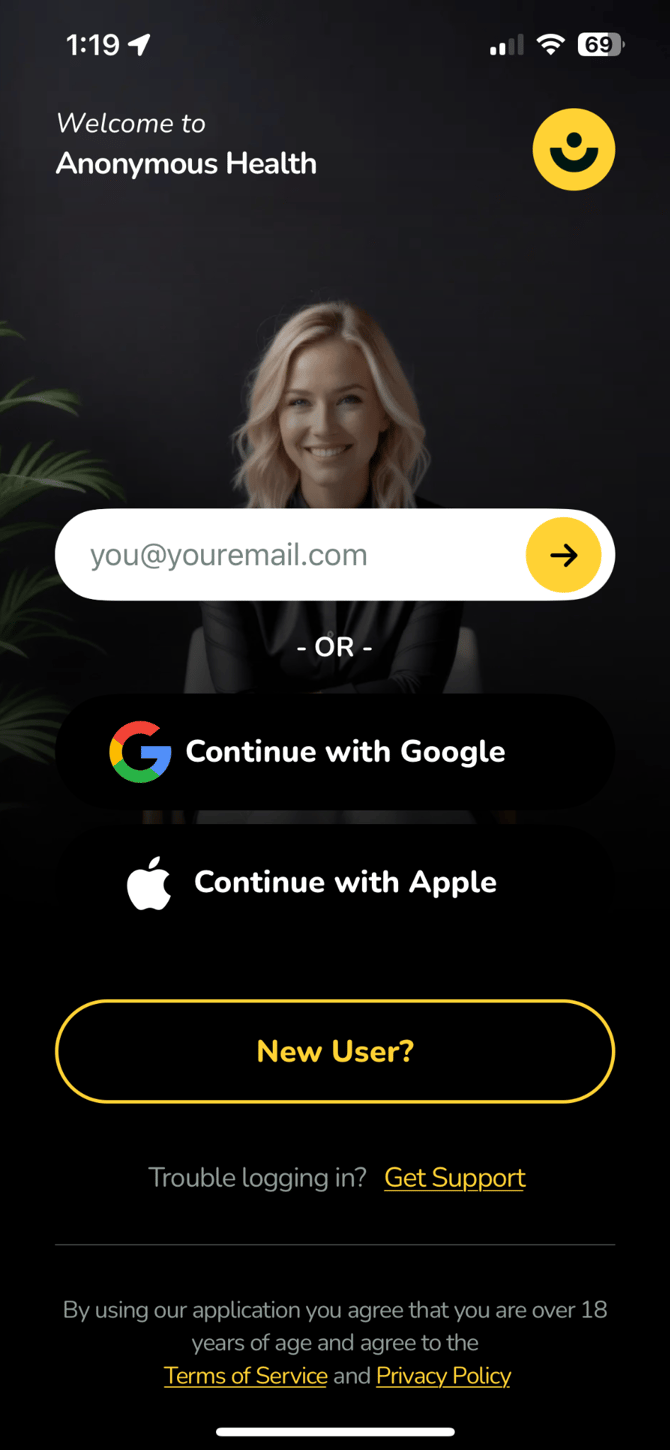
- Get the Code: Immediately check the inbox of the email you entered. Look for the 6-digit code that was just sent to you. (You may also have received this via an invite link in email or text).
- Enter the Code: Go back to the Mobile App and enter the 6-digit code to securely access your account.
- Choose a Companion: Select your AI Companion.
- Enter Details: When prompted, enter your Phone number, then select your provider(s) from the list, and finally enter your First name and Last name.
- Enter Create a Security Code: Create and confirm a 4-digit code (PIN) for quick sign-ins later.
- Enable Biometrics (Optional): Follow the prompts to enable a biometric feature (like Face ID) if you want to sign in faster.
- Enable Notifications: Choose whether you want the app to send you reminders for appointments or new messages.
- Press “Continue” to finish and enter the app.
Part 3: Start Your Journey (If You Don't Have an Account)
If you do not have an email-linked account, you can start here.
- Start Your Journey: Select “Start Your Journey.”
- Enable Notifications: Choose whether you want the app to send you reminders for appointments or new messages.
- Choose a Companion: Select your AI Companion.
- Enter Details: When prompted, enter your Phone number, then select your provider(s) from the list, and finally enter your First name and Last name.
- Create a Security Code: Create and confirm a 4-digit PIN for quick sign-ins.
- Enable Biometrics (Optional): Follow the prompts to enable a biometric feature (like Face ID) if you prefer this for signing in.
- Press “Continue” to get started after your account is verified.
Part 4: Navigating Your Home Screen
After logging in, you will see a "Welcome" message.
- Confirm Login: Look for the white circle with your initials in the top right-hand corner. This confirms you are successfully logged into your account.
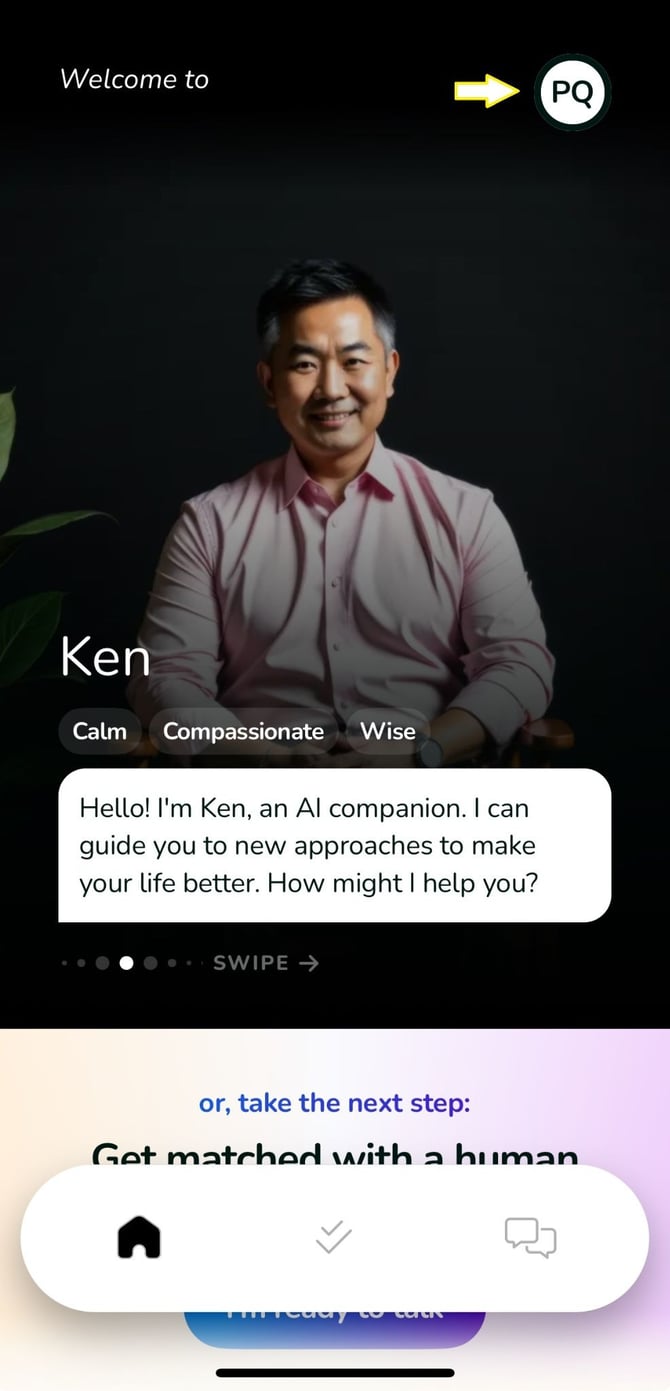
- View Appointments: Scroll down the Home screen to the “Appointments” section to view your next appointment.
- Navigate the App: Use the icons at the bottom of the page to quickly move through the app:
- Home Icon: Returns you to the main welcome page.
- Double Check Marks: Takes you to the daily check-in screen.
- Chat Icons: Takes you to your AI Companions to start a chat.
Part 5: Update Your Profile Picture (Optional)
- Tap the profile circle (with your initials) in the upper right corner.
- Tap the “+” sign on the lower right of the circle.
- Select “Upload Profile Photo.” You may need to enable access to your photo library first.
- Select and upload your photo.
Part 6: Sign Out or Delete Your Account
You can sign out when you are done using the app or delete your account permanently.
- To Sign Out:
- Tap your profile circle at the upper right corner.
- Tap “Settings” in the upper right corner of the next screen.
- Scroll down and tap “Sign Out.”
- To Delete Your Account:
- Tap your profile circle at the upper right corner.
- Tap “Settings” in the upper right corner of the next screen.
- Scroll down and tap “Delete My Account.”
- Tap “Ok” to confirm you want to permanently erase all your data from both your device and the servers.