Expected Outcomes:
After completing this article, you should be able to successfully reschedule a single appointment or a recurring series of appointments within the CTA platform.
Purpose/Short Description:
This article provides clear, step-by-step instructions for counselors and providers to change the date and time of a client appointment.
Tags:
CTA, Counselor, appointments, Provider, Clinician, Scheduling
Audience:
Counseling team, Providers/Clinicians
Step-by-Step Instructions
-
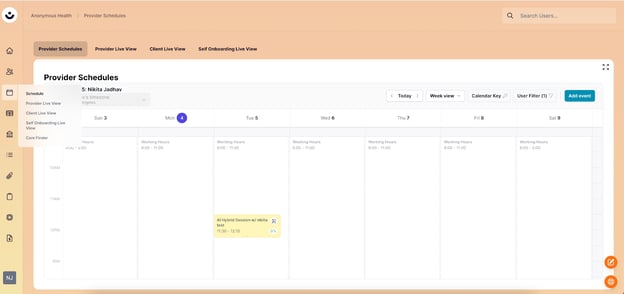
Go to the Schedule: In the CTA platform, click the calendar icon on the left-hand side to navigate to the Schedule section.
-
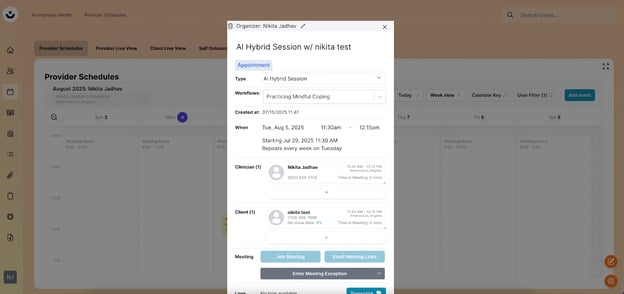
Select the Appointment: Find and click on the appointment card for the meeting you want to reschedule.
-
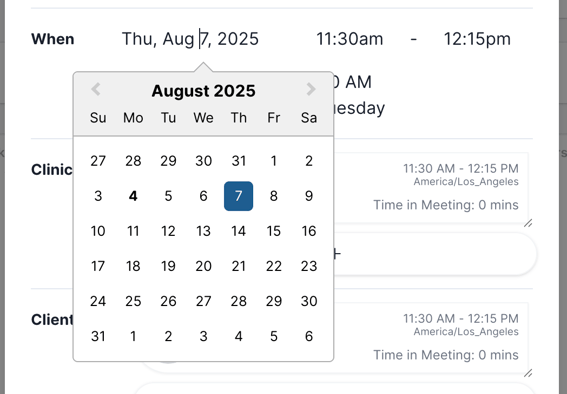
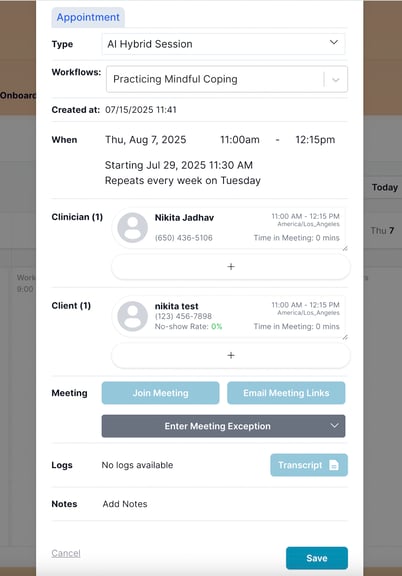
Update the Date and Time: On the appointment card, go to the "When" section. Use the date and time fields to select your new desired date and time.
-
Save the Changes: Click the blue Save button at the bottom of the appointment card.
-
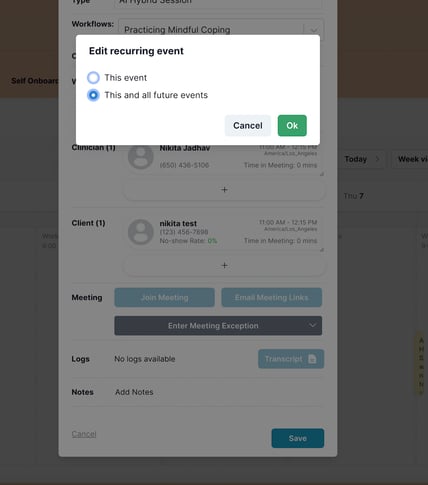
Choose the Appointment Series: A pop-up will appear. Select "This and all future events" if you want to reschedule every instance of this recurring appointment. To reschedule only this single appointment, select "This event."
-
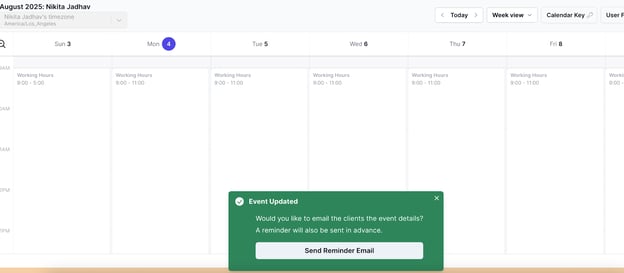
Send a Confirmation Email: Click "Send Reminder Email" to automatically send an updated appointment confirmation to the client.