Expected Outcomes:
After completing this article, you should understand the purpose of every field on an appointment card and how to interact with them.
Purpose/Short Description:
This article serves as a comprehensive guide to the appointment card, explaining each section and feature to help you manage client appointments efficiently.
Tags:
CTA, Counseling, Clinician, Provider Portal, Appointment Card, Scheduling, Meeting, Notes, Logs
Audience:
Counseling Team
1. Accessing the Appointment Card
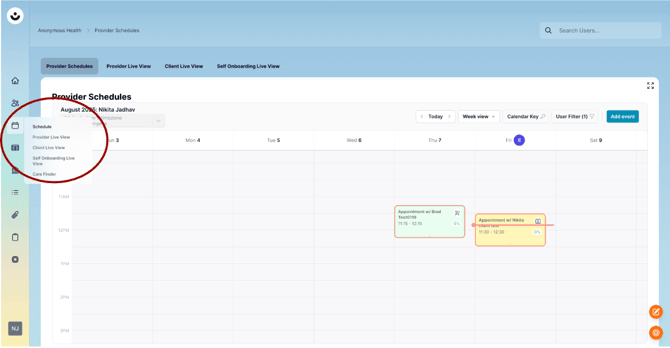
To begin, navigate to the schedule section in the CTA by clicking on the calendar icon. You can then click on any appointment block to open its corresponding appointment card.
2. Key Sections of the Appointment Card
The appointment card provides a centralized view for managing all aspects of a session.
-
Meeting Type and Status:
-
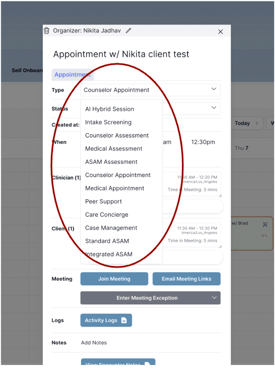
Type: Use the dropdown to select the type of meeting (e.g., "AI Hybrid Session," "Counselor Appointment").
-
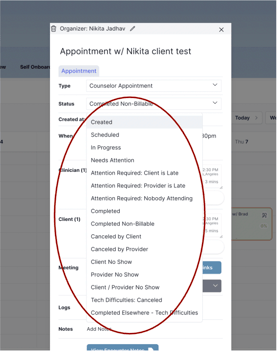
Status: Use the dropdown to change the meeting's status (e.g., "completed," "canceled," "no-show"). You can also click "Enter Meeting Exception" to select a specific status for a completed or non-completed meeting.
-
-
When:
-
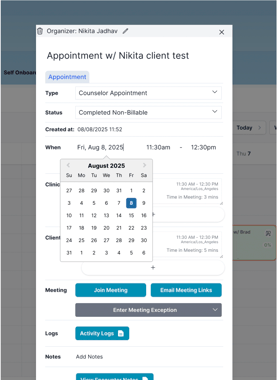
This section displays the date and time of the meeting. You can edit these fields to reschedule the appointment.
-
-
Repeating Appointments:
-
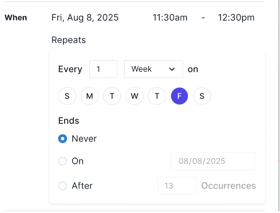
Click on "Does not Repeat" to open a menu where you can set the frequency of a recurring appointment and when the series stops.
-
-
Participants:
-
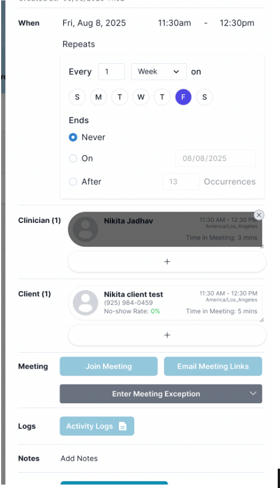
You can change the clinician or client for the appointment. To change a participant, hover over their name, click the "X" icon to remove them, then click the "+" button to add a new one.
-
-
Join Meeting:
-
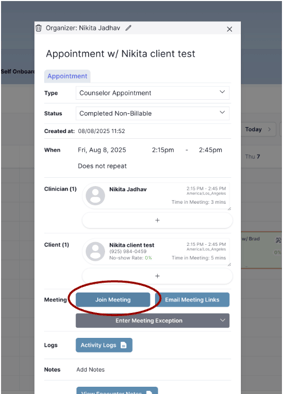
Click the "Join Meeting" button to enter the virtual meeting room.
-
-
Client Communication:
-
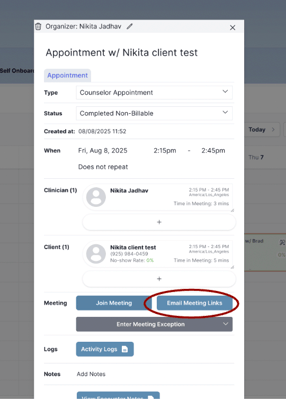
Click "Email Meeting Links" to send the client their unique meeting link.
-
3. Additional Tools
-
Activity Logs:
-
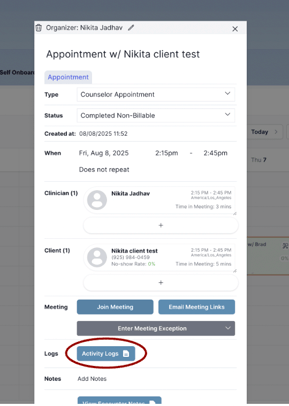
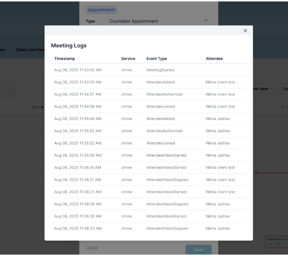
Click on "Activity Logs" to see a detailed record of the meeting, including who joined, when they joined, and when they left.
-
-
Encounter Notes:
-
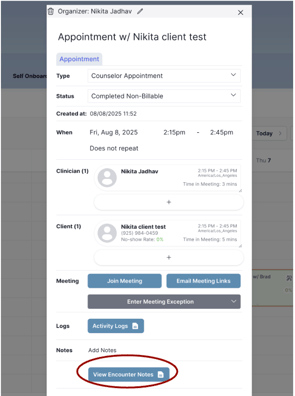
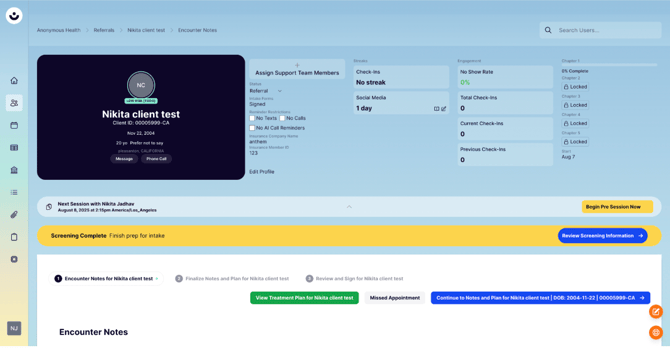
Click "View Encounter Notes" to navigate to the dedicated page for entering and editing clinical notes for the session.
-