Expected Outcomes
After completing this article, you should be able to:
-
Identify and understand the meaning of each appointment status.
-
Accurately log the correct status for a given appointment in the Provider Portal.
Purpose/Short Description
This article serves as a guide for counselors to correctly interpret and use the various appointment statuses available in CTA, ensuring accurate record-keeping and billing.
Tags
Counselor, Provider Portal, Scheduling, Appointment Statuses, Provider Workflow, Admin, Counseling Team
Audience
Counselor, Healthcare Providers, Admins
Body Content: Step-by-Step Instructions
To log the status of an appointment:
-
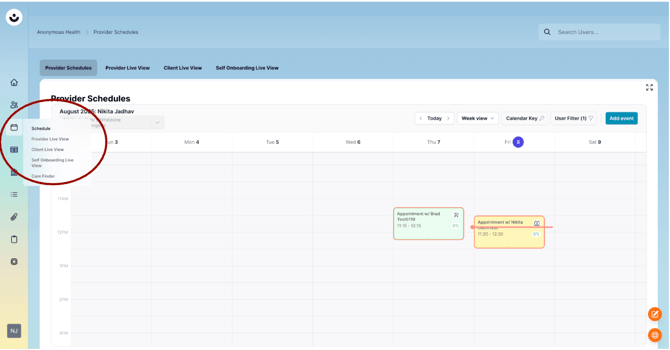
Navigate to the Schedule section by clicking the calendar icon in the navigation menu.
-
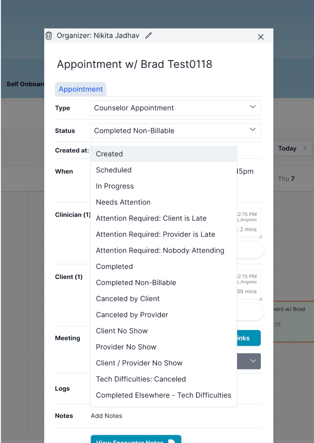
Click on the appointment you wish to update. This will open the Appointment Card.
-
Select the appropriate status from the list.
Detailed Appointment Statuses
Here is a breakdown of what each status means and when to use it:
Scheduled
-
This is the default status for a new appointment.
-
Use this for appointments that are confirmed and awaiting the session start.
In Progress
-
The appointment is currently active, with the client and provider connected.
Completed
-
The session has successfully concluded.
-
This status indicates a completed, billable session.
Completed Non-Billable
-
Use this for sessions that were completed but are not being billed. This may be for a variety of reasons, such as a brief check-in that doesn't meet the requirements for a full session.
Canceled by Client
-
The client canceled the appointment.
Canceled by Provider
-
The provider canceled the appointment.
Tech Difficulties: Canceled
-
The session was canceled due to technical issues that prevented it from proceeding.
Needs Attention
-
This is a general category for issues that require follow-up.
-
Attention Required: Client is Late: The client has not joined the session by the scheduled time.
-
Attention Required: Provider is Late: The provider has not joined the session by the scheduled time.
-
Attention Required: Nobody Attending: Neither the client nor the provider joined the session.
No-Show Statuses
-
These statuses indicate that a party did not attend the scheduled session.
-
Client No Show: The client did not attend the session.
-
Provider No Show: The provider did not attend the session.
-
Client/Provider No Show: Neither the client nor the provider attended the session.
Completed Elsewhere - Tech Difficulties
-
The session started with technical issues but was successfully completed through an alternative method (e.g., a phone call).