Expected Outcomes:
- After completing this article, you should be able to successfully identify, download and install current BIOS and Microsoft Windows drivers for your DELL laptop.
- Please ensure your laptop is plugged in and you have saved any work you need to and closed any applications that may be running.
- Update downloads and installation may take up to 30 minutes. During this time you may need to confirm/ approve multiple update installation programs.
Purpose/Short Description:
- For best reliability and performance, it is important to keep your DELL laptop current with BIOS versions and Windows divers for audio input, output, camera and network interface.
- DELL has a Peripheral Manager program that can help identify, test and set default devices for your Windows system.
Tags:
- Windows, Camera, Mic, Microphone, Speakers, Headset, WiFi, Internet, Laptop, Docking Station
Audience:
- Counseling Team
Body Content: Step-by-Step Instructions
- Structure:
- Save any files, data and complete or save any work you may be working on. Updates will require a restart of your system.
- Plug in your laptop to it's power supply.
- Visit https://www.dell.com/support/home/en-us?app=drivers
Follow the prompts to identify or select you laptop model and perform the Scan for Updates - Review the Available Updates.
- It is recommended that all available BIOS and driver updates are selected to be downloaded and installed. e.g:
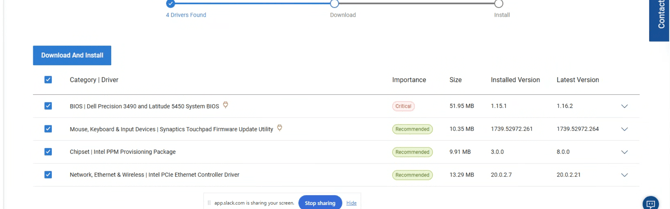
- Installation may take several minutes and you may be prompted multiple times to continue installation for example.
- After the updated have downloaded and completed, Restart your system and all any BIOS update to continue.
- When the Laptop completes updates and you can log in, please check Windows Update for any available updates and install those.
- Dell Peripheral Manager can be downloaded here