Expected Outcomes:
After completing this article, you should be able to view and navigate your own schedule, other providers' schedules, and client schedules using the CTA menu.
Purpose/Short Description:
This article will guide you through using the "Schedule" tab in the CTA to view and interact with provider and client calendars.
Tags:
CTA, Counseling, Provider Portal, Clinician, Scheduling, Schedule
Audience:
Counseling Team
1. Viewing Your Own Schedule
-
Navigate to the Schedule Tab:
-
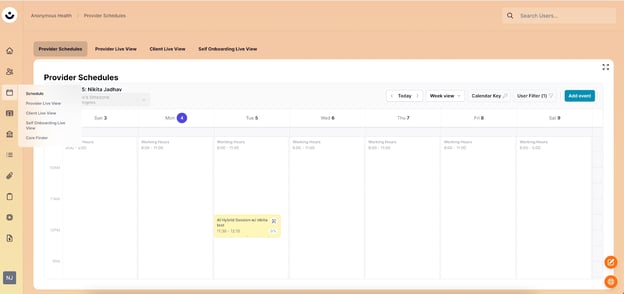
In the CTA, click on the calendar icon labelled "Schedule" in the left-hand navigation menu. This takes you to the schedule section.
-
-
Access Your Provider Schedule:
-
Be sure you are on the "Provider Schedules" tab to view your own schedule
-
2. Viewing Other Provider Schedules
-
Go to Provider Live View:
-
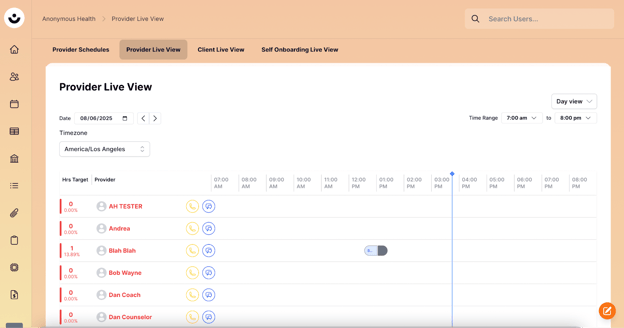
Click on the "Provider Live View" tab to see other providers' schedules.
-
-
View Appointment Details:
-
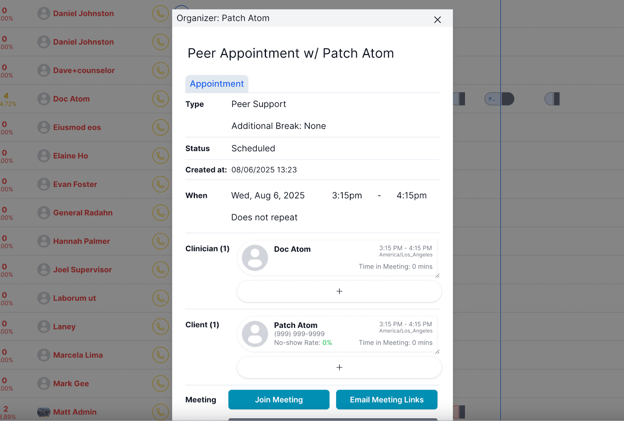
Click on any appointment block to see its details.
-
3. Viewing Client Schedules
-
Go to Client Live View:
-
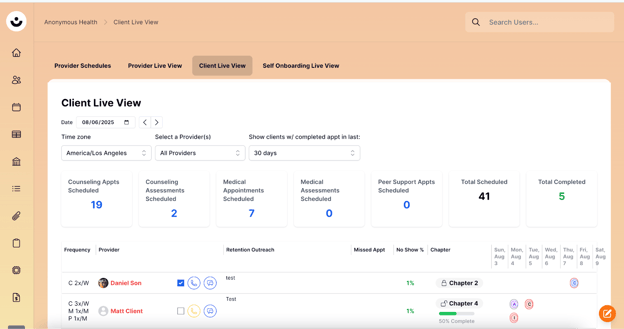
Click on the "Client Live View" tab.
-
-
Filter Client Schedules:
-
You can filter the schedules of clients by Providers, Time Zone, and Last completed Appointment.
-
-
View a Client's Full Schedule:
-
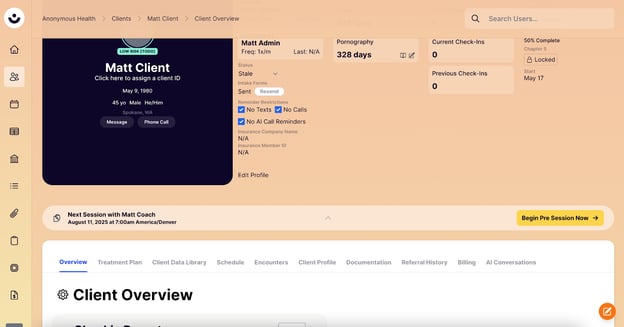
Click on a client's name from the list to go to their individual profile page.
-
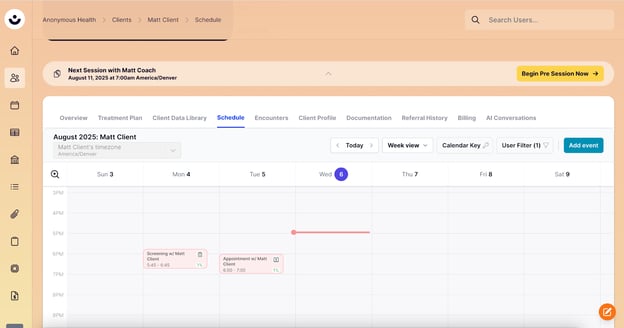
Click the "Schedule" tab on their profile page to view their full schedule.
-